One day, one view: how Ensō's Agenda pulls tasks, events, and notes together
Most productivity setups split “today” across three apps. Your tasks live in a todo list. Your meetings live in a calendar. The things you jot down during the day — a phone number, a half-decision, something someone asked you for — live in a notes app, or on the nearest piece of paper.
Each of those tools is fine on its own. The problem is the seams. Answering the simple question “what does today actually look like?” means checking the calendar, then the todo list, then remembering which note you left that thing in. Planning tomorrow means the same round trip in reverse. Most of us do this shuffle several times a day without noticing it’s work.
Ensō’s answer is a screen whose only job is one day. It’s called the Agenda, and it sits in the app rail next to Todo, Calendar, and Notes — not as a view inside one of them, but as the place where they meet.
One day on one page
Open the Agenda and you get today: the full date across the top, and below it, in a fixed order, everything from the rest of the suite that lands on this day.
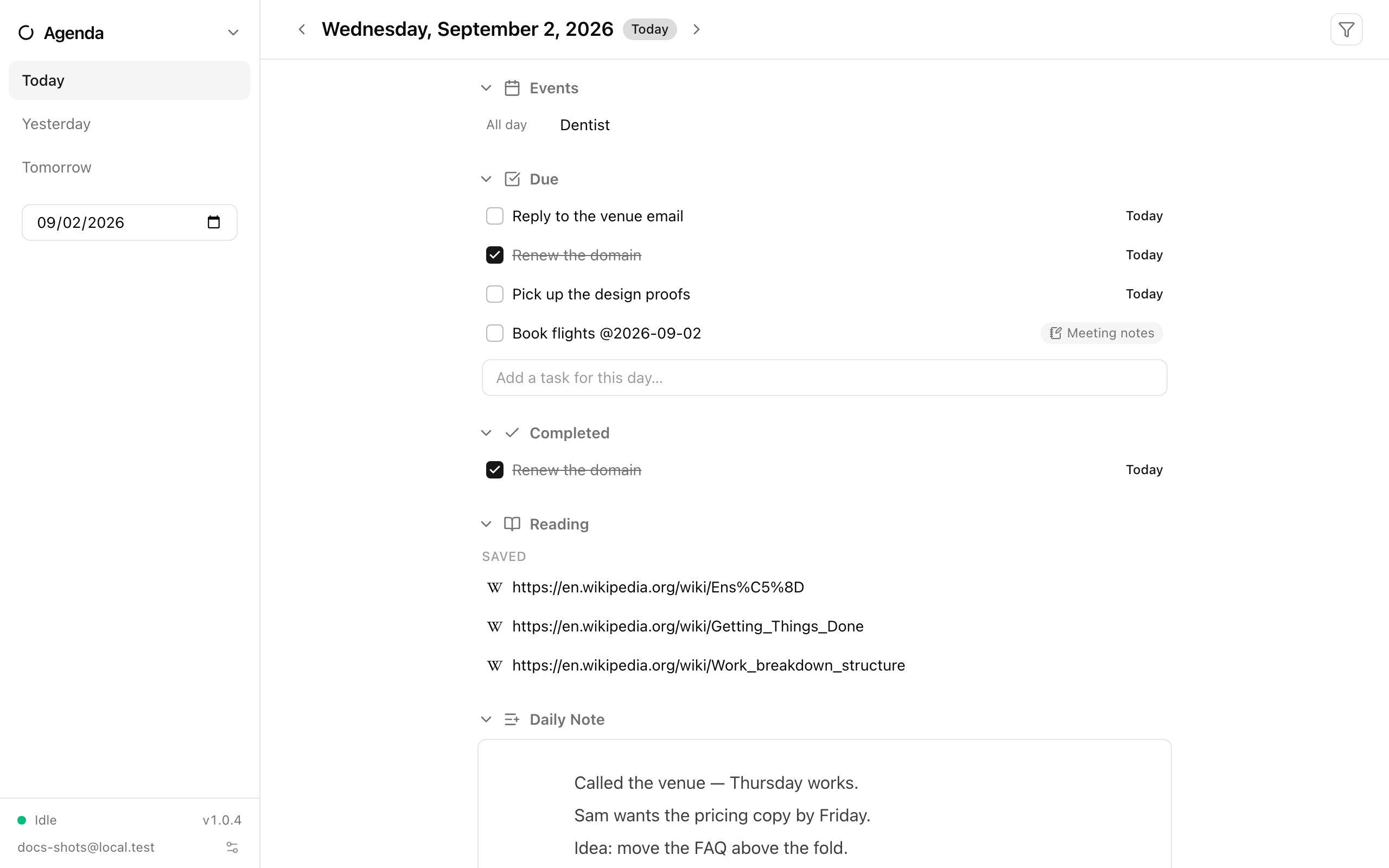
The sections always come in the same order, so your eye learns where to look:
- Events — your calendar events for the day. Click one and it opens in the Calendar app.
- Overdue — open tasks whose due date has passed. This section only appears when you’re viewing today: overdue work rolls forward to meet you, rather than cluttering up the past.
- Due — tasks due today, including the ones you’ve already checked off, which stay visible (checked) for the rest of the day. A small thing, but a day where you finished five tasks looks different from a day where there was nothing to do.
- Completed and Added — what you finished and what you captured today.
- Reading — pages you saved to your reading list or finished reading.
- Daily Note — the day’s scratchpad. More on that below.
Empty sections hide themselves, so a quiet Saturday is a short page. And moving between days never creates anything: arrows in the header step a day at a time, the sidebar has Yesterday / Today / Tomorrow links and a date picker, and browsing to look at next Thursday leaves next Thursday exactly as it was.
In practice a morning starts like this: open the Agenda, and in one glance you know there’s a dentist appointment at ten, three things due, and one thing that slipped from yesterday sitting at the top asking to be dealt with. Nothing to assemble, nothing to cross-reference. Checking a task off here works exactly as it does in the Todo app — same task, same data — and clicking any row takes you to the app it lives in when you need the full context: the task’s subtasks and notes in Todo, the event in Calendar, the page in Notes.
Tasks and events, on the same calendar
The Agenda works because tasks and events already share a timeline underneath.
In Ensō, a task can carry a due date, set from the task’s details panel or straight from the Agenda. Tasks can also repeat — every day, every other week, monthly on the 31st (which lands on Feb 28 rather than drifting, the way you’d hope) — and completing a repeating task spawns its next occurrence.
The Calendar app then shows both kinds of thing in its month grid: events as colored chips, tasks due that day as chips with a small checkbox outline, and a muted “3 completed” line on days where you got things done.
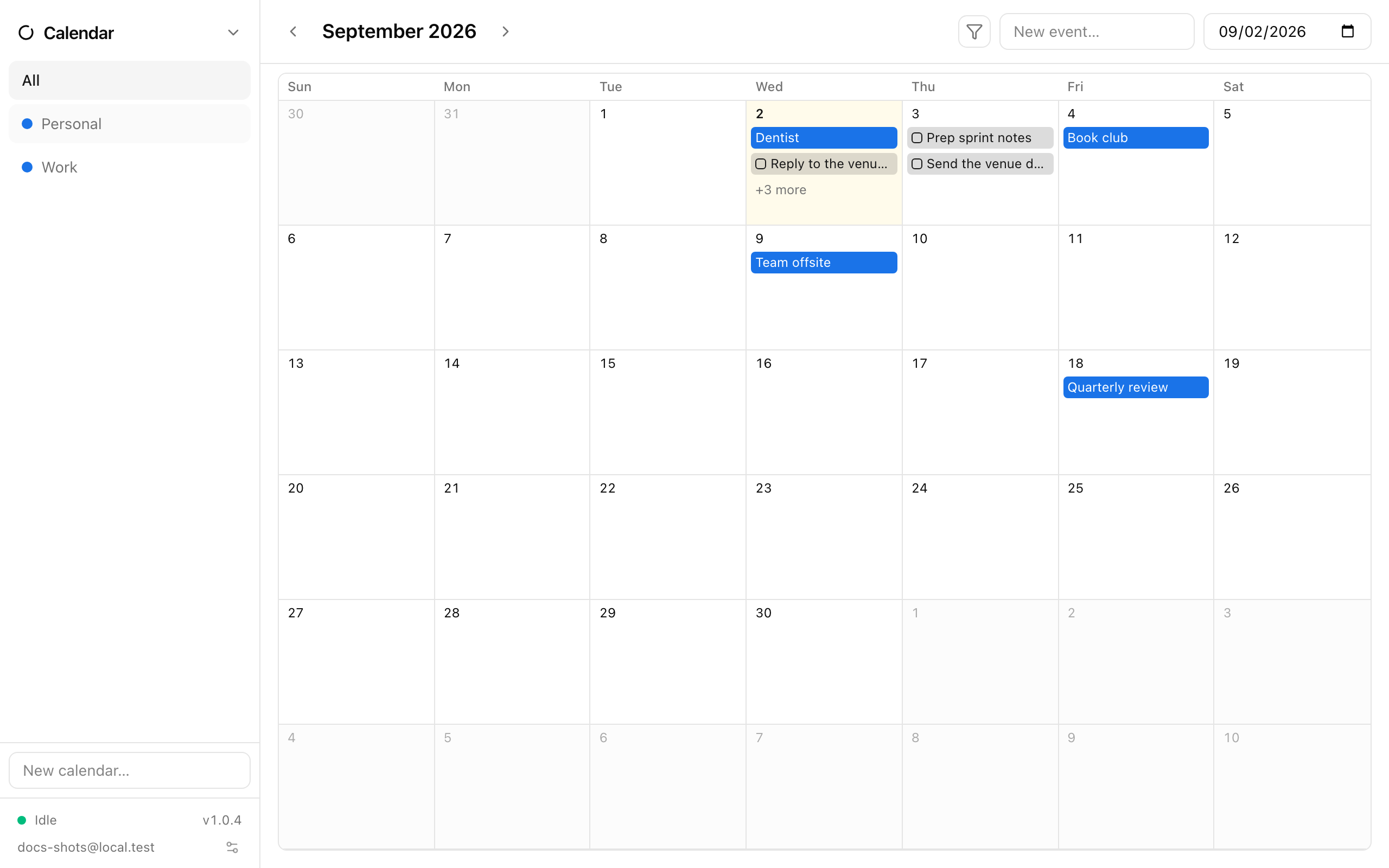
So the month view answers “what’s coming?”, and the Agenda answers “what’s now?” — same data, two zoom levels. There’s also a single, deliberately boring notification option: a per-device toggle that says notify me when tasks are due today. No per-task alarm fiddling; if it’s due today, you hear about it once, on the devices where you want that.
Planning tomorrow is arrow, type, Enter
At the bottom of the Due section there’s an input that reads “Add a task for this day…”. Whatever you type goes into your Inbox list with the due date already set to the day you’re looking at.
That turns end-of-day planning into a loop that takes seconds: press the next-day arrow, type the three things tomorrow needs, press Enter three times, done. The tasks are real tasks — they show up in Todo, they can be filed into proper lists later — but capturing them never required leaving the day you were planning.
The Inbox is deliberately the default destination. Deciding which list a task belongs to is a filing decision, and filing decisions are exactly the kind of friction that stops people from writing things down in the first place. So the Agenda separates the two: capture now, with a date; organize later, from Todo, if it even matters. Plenty of tasks live and die in the Inbox without ever needing more ceremony than that.
Checklists in your notes that keep their date
Here’s the part that took the longest to get right. Some commitments don’t start life in a todo list. They start inside a note — meeting minutes, a project outline, a packing list — as a checklist item that happens to have a deadline.
In Ensō’s notes editor, typing @ in a checklist opens a small menu: Today,
Tomorrow, Next week, or a date you type. Pick one and it inserts a plain date
token like @2026-09-05 into the text. That’s the whole ceremony — and it’s
enough. Any checklist item carrying a date shows up in the Agenda’s Due
section on that day (and in Overdue after it), right alongside your tasks,
with a small chip naming the page it came from.
Checking the box on the Agenda checks it in the note. Clicking the row opens the page in Notes. And checklist items without a date never appear — an undated checklist is page content, not a commitment, and the Agenda doesn’t get to promote it to one.
The effect is that your notes stop being a place where deadlines go to hide. You can keep writing minutes the way you naturally write them, drop a date on the two lines that matter, and trust that they’ll surface on the right morning.
The daily note: a scratchpad that files itself
The last section of every day is the Daily Note — the answer to the pile of sticky notes next to your keyboard.
Each day can have one note. It lives in the Notes app, in a root folder called Daily Notes, on a page named after the date. But you never set that up: on the Agenda, a day without a note just shows a dashed “Add notes for this day” placeholder. Click it and the page exists; ignore it and it never does. Your notes tree doesn’t silently fill up with hundreds of empty day pages — after a year, the Daily Notes folder contains exactly the days you actually wrote something down.
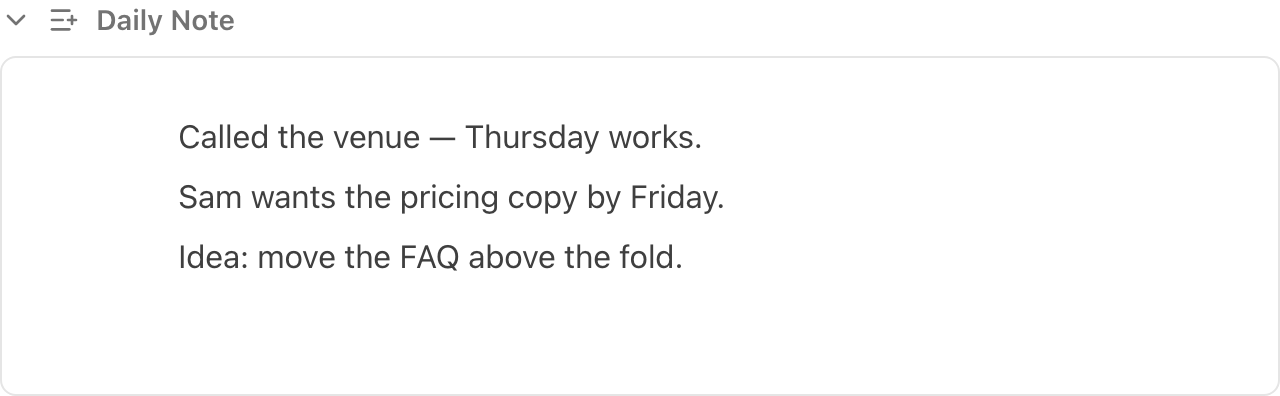
The editor embedded in the Agenda is the real Notes editor — the same blocks, the same formatting, the same page you’ll find in the Notes app. So the daily note works as a genuine scratchpad: called the venue, Thursday works; Sam wants the pricing copy by Friday; an idea you don’t want to lose. It’s filed by date automatically, searchable later, and sitting in context next to what the day actually was.
One engineering detail, because it’s the kind of thing that’s invisible right up until it saves you: Ensō is offline-first, and daily notes are built for that. If your laptop and your phone both create today’s note while offline, they don’t produce two competing pages — both devices derive the same page identity from the date, so when they sync, the notes merge into one. And if both devices edited the very same paragraph, the losing version isn’t discarded; it’s kept in a visible conflict block right under the winner, for you to resolve. Nothing you scribbled into a daily note gets quietly thrown away by sync.
Everywhere, including offline
All of this works the same on the web, on desktop, and on your phone — and it works with no connection at all. Every device keeps its own local database; sync reconciles them when you’re back online. The morning Agenda on a plane looks exactly like the morning Agenda at your desk, and the tasks you check off and the notes you scribble mid-flight merge cleanly when you land.
That’s the quiet argument for keeping tasks, events, and notes in one suite rather than three subscriptions taped together: the Agenda isn’t an integration, it’s a view. There’s no third-party bridge polling two APIs, no “connect your calendar” step that breaks in six months, no duplicate copy of your tasks living inside a calendar app. One database per device, one sync engine, and a page that simply reads what’s already there.
If you want to go deeper, the Agenda documentation covers every section in detail, and the first-day tutorial walks through setting up a working day from scratch.
Or just try it: open the Agenda, press the next-day arrow, and give tomorrow its three tasks. It takes about ten seconds — which is roughly the point.