
Your first day in Ensō
By the end of this walkthrough you’ll have an Ensō account, a todo list with a few dated tasks and a subtask, a task and a note captured without leaving the keyboard, and a look at today’s Agenda. About 15 minutes.
What you’ll need
Section titled “What you’ll need”- A browser open at https://app.ensoapp.io (the desktop app works identically — see Install)
- An email address you can check, to verify your account
1. Register
Section titled “1. Register”- On the sign-in screen, type your Email and a Password (min 8 chars).
- Click Register. (The same form has a Log in button for next time.)
- Ensō opens with a banner: Verify your email to start syncing. Click the link in the email we sent, then click I’ve verified in the banner (or just wait — it re-checks on its own). If the email doesn’t arrive, click Resend email and check spam.
You can use Ensō before verifying; your data stays on this device until you do. New accounts start a free Premium trial — see Billing.
2. Create a todo list
Section titled “2. Create a todo list”Ensō opens in Todo, with a ready-made list called Inbox.
- At the bottom of the left sidebar, click the field that reads New list….
- Type a name, for example
Errands, and press Enter.
The list appears in the sidebar and is selected.
3. Add a few tasks
Section titled “3. Add a few tasks”- At the bottom of the task pane, click Add a task and press Enter….
- Type
Return library booksand press Enter. The field clears, ready for the next one. - Add two more:
Buy birthday cardandBook dentist.
The header shows the count, e.g. 3 open · 3 total.
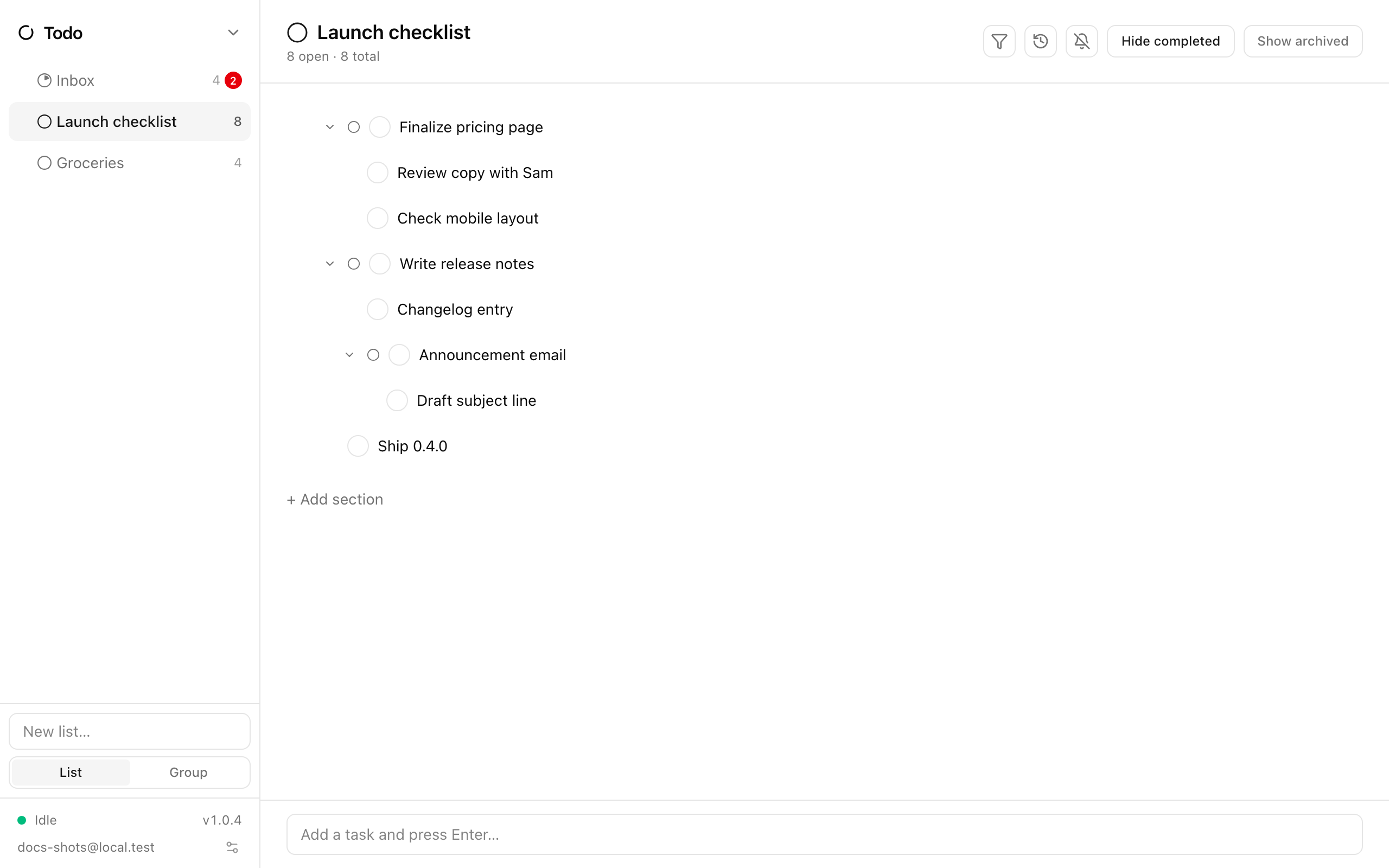
4. Give them due dates
Section titled “4. Give them due dates”- Double-click Return library books. The Details panel opens on the right.
- Under Due date, pick a date from the date picker. It saves as soon as you choose.
- Do the same for the other two tasks — make one of them today.
Each task row now shows a date chip: Today, Tomorrow, or the date. Overdue dates turn red.
5. Nest a subtask
Section titled “5. Nest a subtask”- Double-click Buy birthday card to open its Details.
- In the Subtasks block, click Add a subtask, type
Find out her favourite colour, and press Enter. - Close the panel. The parent row now has a chevron; the subtask sits indented beneath it, and the panel shows progress like 0 of 1.
You can also rearrange existing tasks: with a row focused, Tab indents it under the task above and Shift+Tab outdents; or right-click a task and choose Indent / Outdent under Nesting. Completing a parent completes its open subtasks too.
6. Capture a task from anywhere
Section titled “6. Capture a task from anywhere”Say you’re in another module and remember something.
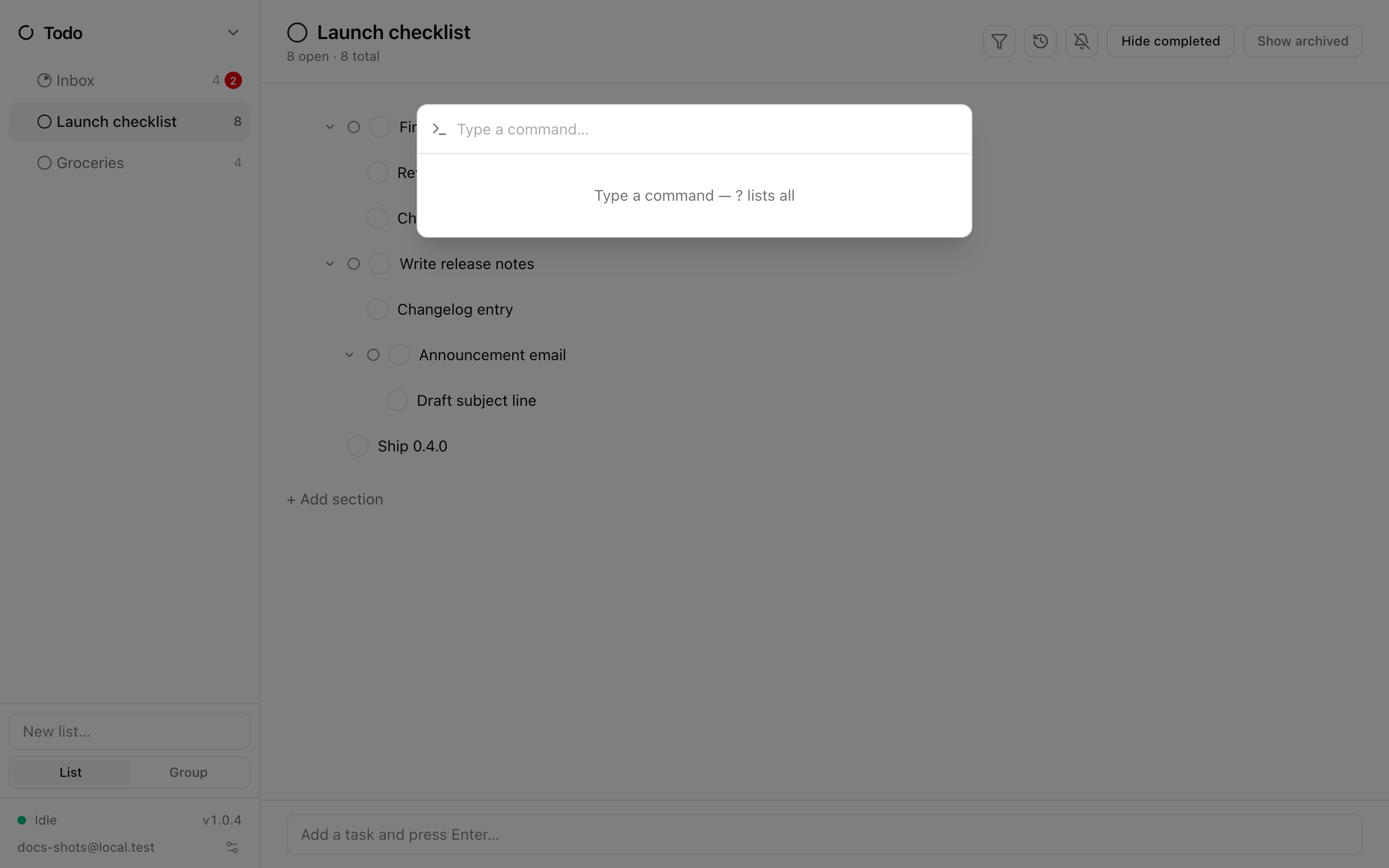
- Press Ctrl+Space. The command palette opens with Type a command….
- Type
t n— the row New todo in Inbox is highlighted. Press Enter. - Type a title in Todo title… and press Enter.
The task lands in your Inbox list; you stay where you were. Esc backs out at any point.
7. Jot a quick note
Section titled “7. Jot a quick note”- Press Ctrl+Space again and type
n c— Capture to Inbox note. Press Enter. - Type a line in Note text… and press Enter.
The line is appended to a Notes page called Inbox (created the first time you capture). Open Notes later to find it and refile.
8. Look at today’s Agenda
Section titled “8. Look at today’s Agenda”- Press Ctrl+Space, type
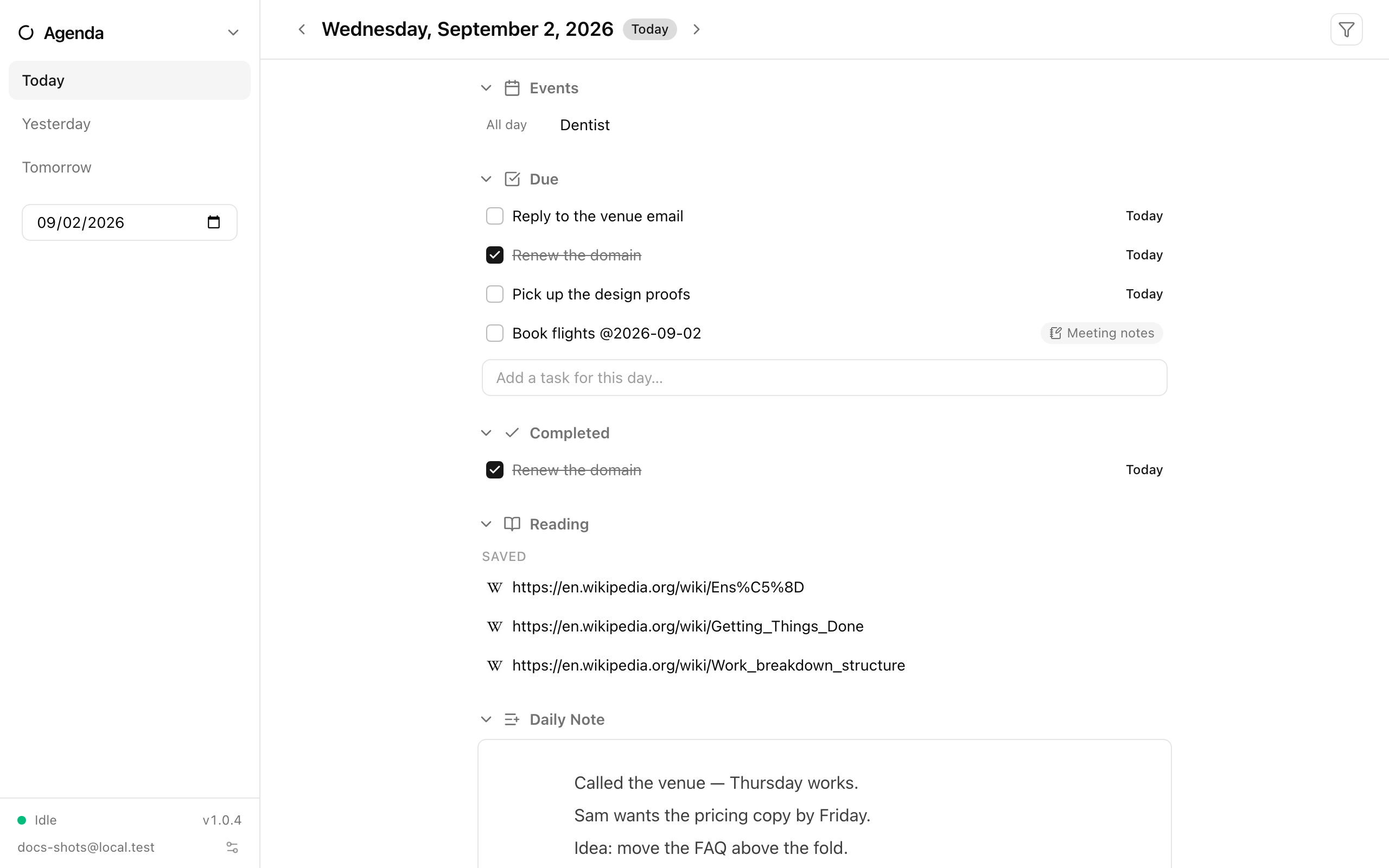
a, press Enter — or open the app switcher at the top of the left rail and choose Agenda. - Today’s date is the heading. Scan the sections: Events from your calendars, Overdue (only on today, only if there is something), Due — including the task you dated for today — and Added for tasks created today.
- Want one more? Type into Add a task for this day… under Due; it goes into Inbox with today’s date.
- Scroll down to Daily Note and click Add notes for this day to start a journal page for today.
Use the ‹ and › arrows, the Today / Yesterday / Tomorrow links, or the date picker in the sidebar to look at other days.
Where next
Section titled “Where next”- Todo — sections, archiving, notifications, and more
- Agenda — how note checklists with
@datesshow up here - Command palette and the Keyboard reference
- Use Ensō on two devices