
Command palette
The command palette is a small box that opens over any app in Ensō. You type a short command and press Enter. It works from anywhere — even while your cursor is in a text field or the notes editor.
Opening and closing
Section titled “Opening and closing”- Ctrl+Space opens the palette. This is Ctrl on Mac too, not ⌘.
- Press Ctrl+Space again, press Escape, or click outside the box to close it. When you cancel, your cursor goes back to where it was.
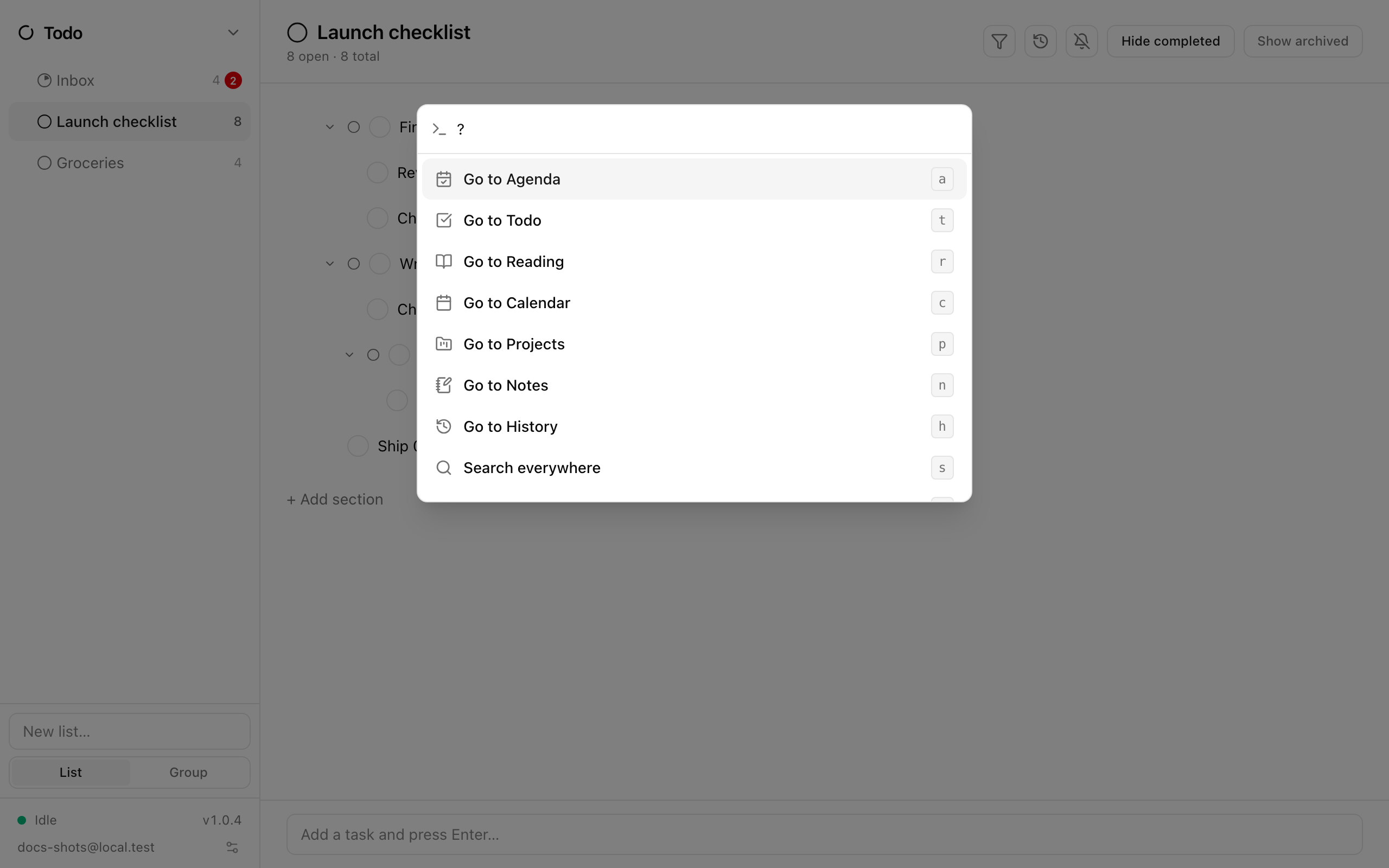
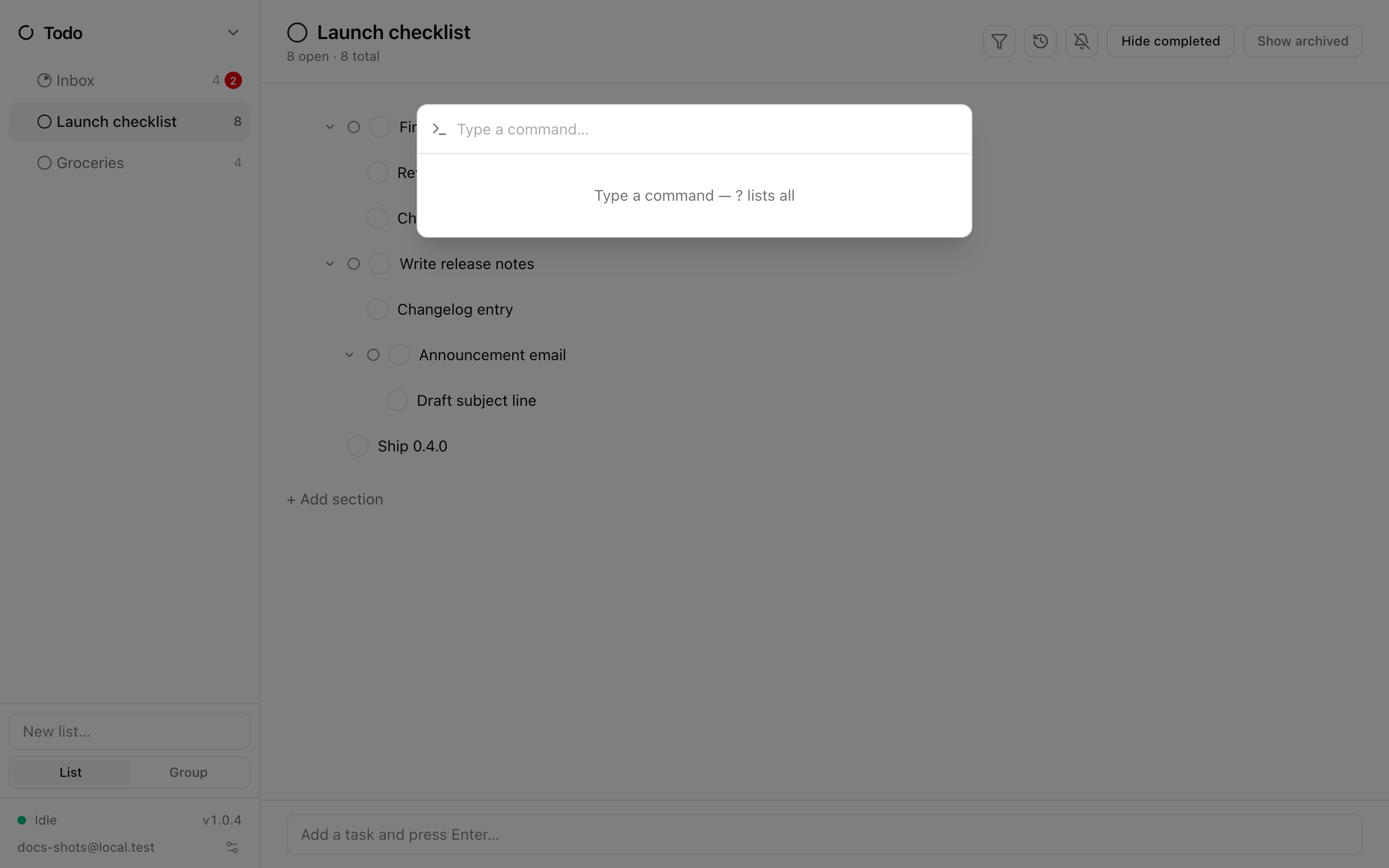
The input reads Type a command…. Type ? to see every command.
Commands
Section titled “Commands”| Type | What happens |
|---|---|
? |
Lists all commands |
a |
Go to Agenda |
t |
Go to Todo |
r |
Go to Reading |
c |
Go to Calendar |
p |
Go to Projects |
n |
Go to Notes |
e |
Go to Email |
h |
Go to History |
s |
Search everywhere — opens global search |
v |
Toggle split view |
n n |
New note — creates a blank top-level page and opens it in Notes |
t n |
New todo in Inbox — asks for a title, then adds the task without leaving the app you are in |
n c |
Capture to Inbox note — asks for some text and appends it to your “Inbox” notes page, without leaving the app you are in |
f |
Lists the tag-filter targets with their shortcuts |
f a |
Clear the view filter (a always means “All”) |
f <letters> |
Filter the whole suite to one tag, e.g. f w for work |
Input is case-insensitive and extra spaces are ignored, so T is the same as t.
How the list behaves
Section titled “How the list behaves”As you type, the palette shows every command that starts with what you typed — t lists both t and t n. One row is always highlighted: the exact match if there is one (so t still beats t n), otherwise the first row.
- ↑ / ↓ move the highlight (wrapping at both ends).
- Enter runs the highlighted row. You can also click a row.
- Something that matches nothing shows “unknown command”; nothing happens on Enter.
Two-step commands
Section titled “Two-step commands”t n and n c do not run immediately. Pressing Enter on them opens a second field (Todo title… or Note text…):
- Enter submits and closes the palette. Your text keeps its capitalization.
- Escape goes back to the command line (the footer reads “Enter to add · Esc to go back”).
The todo lands in your Inbox list; the note text is added as a new paragraph at the end of a top-level page called “Inbox” (created for you the first time).
Filtering by tag with f
Section titled “Filtering by tag with f”f is the fast path to the suite-wide view filter. Typing f lists All — clear filter plus one row per tag, each with the shortest input that selects it: with tags personal, project and work the hints read f a, f pe, f pr and f w. Matching is on the tag name, so typing more letters (f pers) still works.
A check mark shows the tag that is currently applied. Filter commands hand focus back to where you were, so f w from the middle of a note keeps your cursor in place.