
Reading list
Reading list is a read-it-later queue built into Ensō. Paste a link, and it is saved with its title and site icon into a list of your choosing; read it when you have time, tick it off, and it slides into the completed group. With the Chrome extension, saved pages also get a full offline copy you can open without the original site.
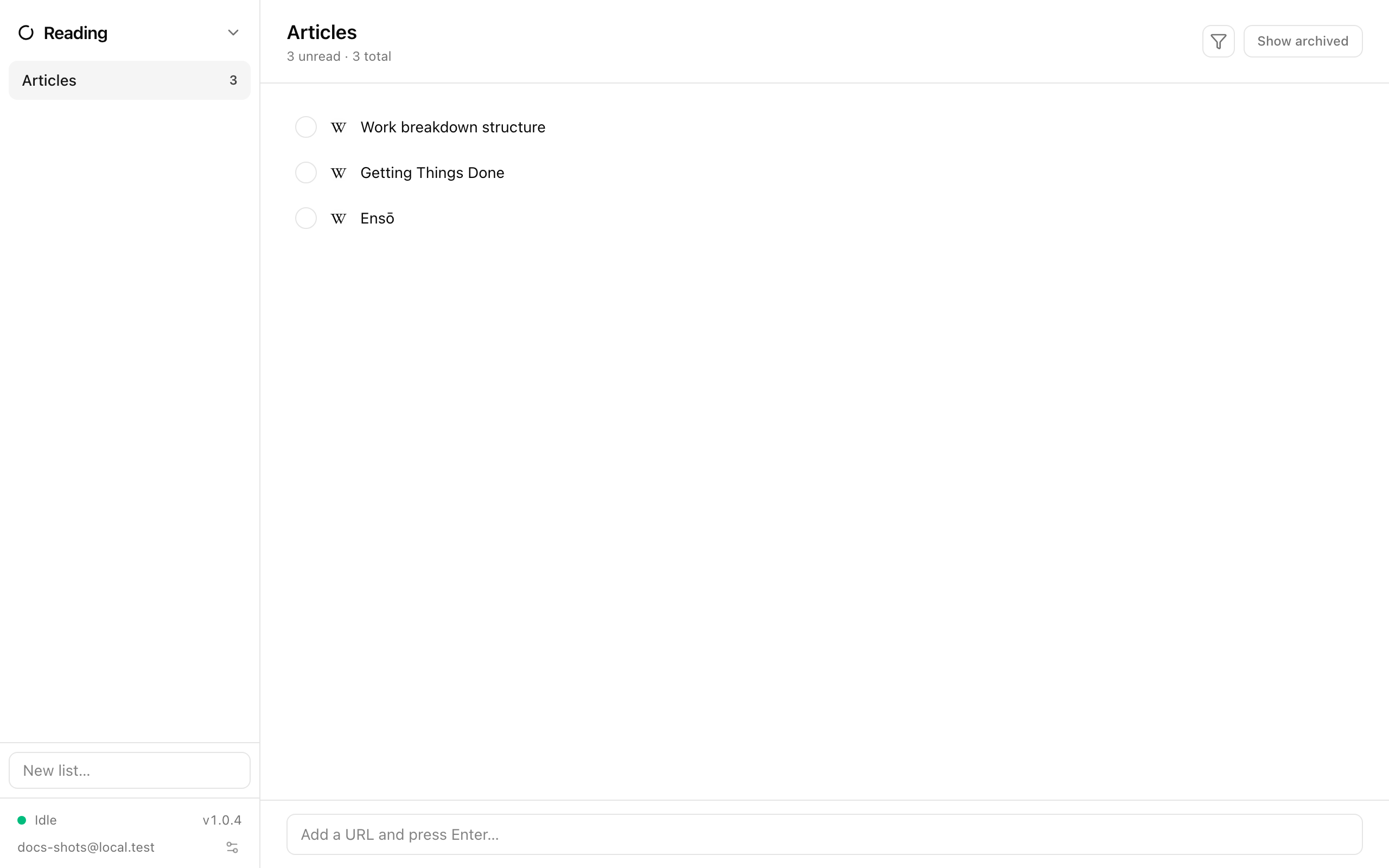
Pages live in reading lists shown in the sidebar, each with an unread count. Add one with New list… and Enter. Right-click a list to rename or delete it, or to give it tags for the view filter (Tags and filters).
Saving a page
Section titled “Saving a page”Open a list, paste a URL into Add a URL and press Enter…, and press Enter. The page’s title and favicon are filled in for you — immediately when saved from the Chrome extension, otherwise by Ensō’s server shortly after. The icon is stored with the page, so rows render the same on every device and offline.
Reading and finishing
Section titled “Reading and finishing”- Click a title to open the original page in your browser.
- Click the checkbox (Mark read) when you’re done; the page lingers for a moment, then moves into the Completed (N) group at the bottom. Mark unread brings it back.
- Archive page hides a page without marking it read; Show archived / Hide archived in the header toggles the Archived (N) group.
- Right-click a page → Move to sends it to another list. Delete page removes it.
- The header shows
N unread · N totalfor the current list.
Finished pages also appear under Reading → Finished on that day’s Agenda, and saved ones under Saved.
Offline copies
Section titled “Offline copies”When a page was saved through the Chrome extension, the extension also captures a complete snapshot of the page and uploads it. Such pages show an (Offline) link next to the title; click it to open the saved copy, even when the original site is down or you’re offline.
Chrome extension
Section titled “Chrome extension”The extension adds a one-click “save to Ensō” button to Chrome, fills in titles and icons instantly, and produces the offline copies described above. In the desktop app, the Browser extension button in the Reading header reveals the extension folder and walks you through loading it in Chrome. Full instructions: Chrome extension.
Shortcuts
Section titled “Shortcuts”| Keys | Action |
|---|---|
| Enter in the URL field | Save the page |
| Escape | Close a menu or cancel an edit |
| r in the command palette | Jump to Reading |
Global search (Ctrl/⌘+F) finds saved pages by title and jumps straight to the row.