
Notes
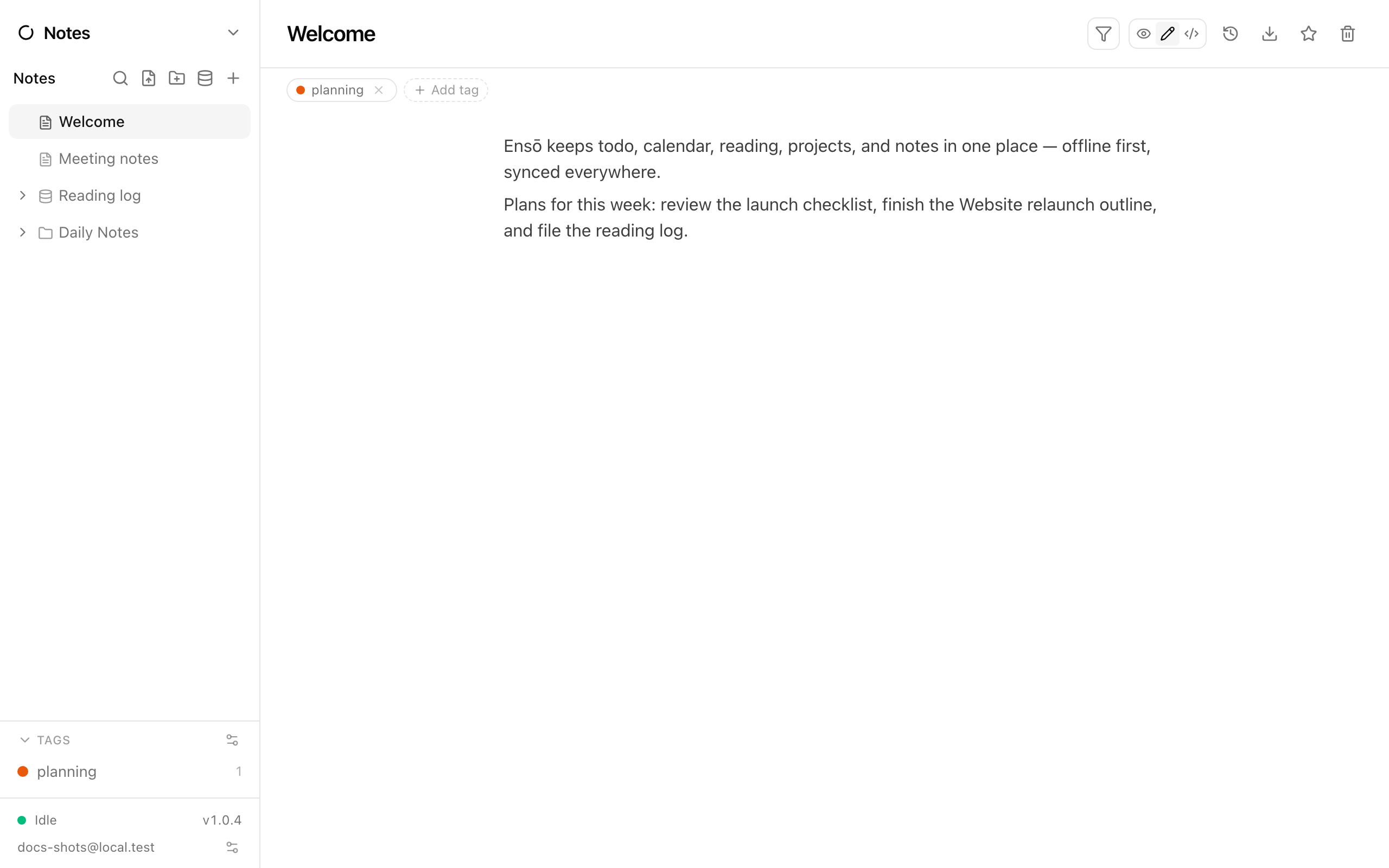
Notes is Ensō’s personal wiki. Pages live in a tree you organise however you like, each page is a block editor (headings, lists, checklists, code, tables, images), pages link to each other, and everything is searchable. On top of the basics there are daily notes, a small formula language for computed values, and databases — typed tables with grid and dashboard views.
Pages and the tree
Section titled “Pages and the tree”The sidebar shows favorites at the top, then your page tree, then the Vaults and Tags sections (each collapses from its header). The header buttons create a New page, New folder, or New database, and Import Markdown files.
- Click a page to open it; the title edits in place (Untitled until you type one).
- Drag pages to reorder or drop one onto another to nest it.
- Right-click or use the page header for Add to favorites / Remove from favorites and Delete page (deleting a page deletes everything under it).
- Folders hold pages and have no editor of their own.
The editor
Section titled “The editor”Type / on an empty line to open the block menu — paragraphs, headings, bulleted / numbered / check lists, code, tables, images, and Widget / Formula. Drag the handle beside a block to move it; the same handle’s menu has Move to page…, which moves a block (with anything nested in it) to another page.
The Page mode control in the header switches between Edit, View (read-only), and Code (widget source). The mode is remembered per page on each device.
Headings fold: click the chevron in the gutter beside a heading to collapse everything until the next heading of the same or higher level. Folds are a display setting on your device; the page itself doesn’t change.
Images pasted or dropped into a page are stored with the page (up to 5 MB each) and sync to your other devices.
Page links
Section titled “Page links”Type [ to open the page picker and insert a link to another page. The link is a chip that always shows the target’s current title (renaming the target updates every link) and is struck through if the target was deleted. Click a chip to jump.
Dates for the Agenda
Section titled “Dates for the Agenda”Typing @ opens a date menu — Today, Tomorrow, Next week, or a typed date — which inserts plain text like @2026-08-22. A checklist item carrying one of these shows up in the Agenda on that day, and checking it there updates the note.
Search
Section titled “Search”Press Ctrl/⌘+K inside Notes (or click Search notes) to search page titles and contents; results show the best match per page. Suite-wide search across every app is Ctrl/⌘+F — see Search.
Pages carry tags shown as chips under the title. Manage tags (the gear in the Tags section) opens the tag manager to rename, recolor or delete tags. Tags drive the cross-app view filter; with a filter on, the tree shows matching pages plus their ancestors. See Tags and filters.
Daily notes and the Inbox
Section titled “Daily notes and the Inbox”- Daily notes live in a root folder called Daily Notes, one page per date. The Agenda creates and shows them; you can also edit them here.
- Inbox is a root page used by the command palette’s quick capture (n c), which appends a line without leaving the app you’re in. It’s created on first use.
Markdown import and export
Section titled “Markdown import and export”- Import .md file (sidebar header) accepts one or more Markdown files; each becomes a top-level page named after the file.
- Export as markdown (page header) downloads a leaf page as
<title>.md, or a page with sub-pages as a.zipmirroring the tree. Widgets export as code blocks with their source; page links export as their text.
Page history
Section titled “Page history”Show page history in the page header opens a timeline of every change to the page, from any device. Pick View page as of this change to preview the page as it was at that moment, then Restore this version to bring it back. The restore is itself recorded, so it can be undone. See History.
Widgets and formulas
Section titled “Widgets and formulas”The Widget / Formula block holds a few lines of a tiny language for computed values:
# a page-scoped valuematerial_percent = todo_done / todo_total
# a widget drawn on the pageprogress_bar(Dashboard/material_percent, color="green")- Built-ins per page:
todo_total,todo_done,todo_open(counts of checklist items). - Reference another page’s values as
PageTitle/name; quote titles with spaces:"Ford LAP"/material_percent.a/bwith no spaces is a reference,a / bwith spaces is division. - Widgets:
progress_bar(value, color="…"),print(value),echo(value). - Definitions only render in Code mode; errors show as amber chips and never break the page.
- The source editor has an Insert reference button (Ctrl+Space) to pick a page and variable; references survive page renames.
Databases
Section titled “Databases”A database is a special page holding typed tables and views.
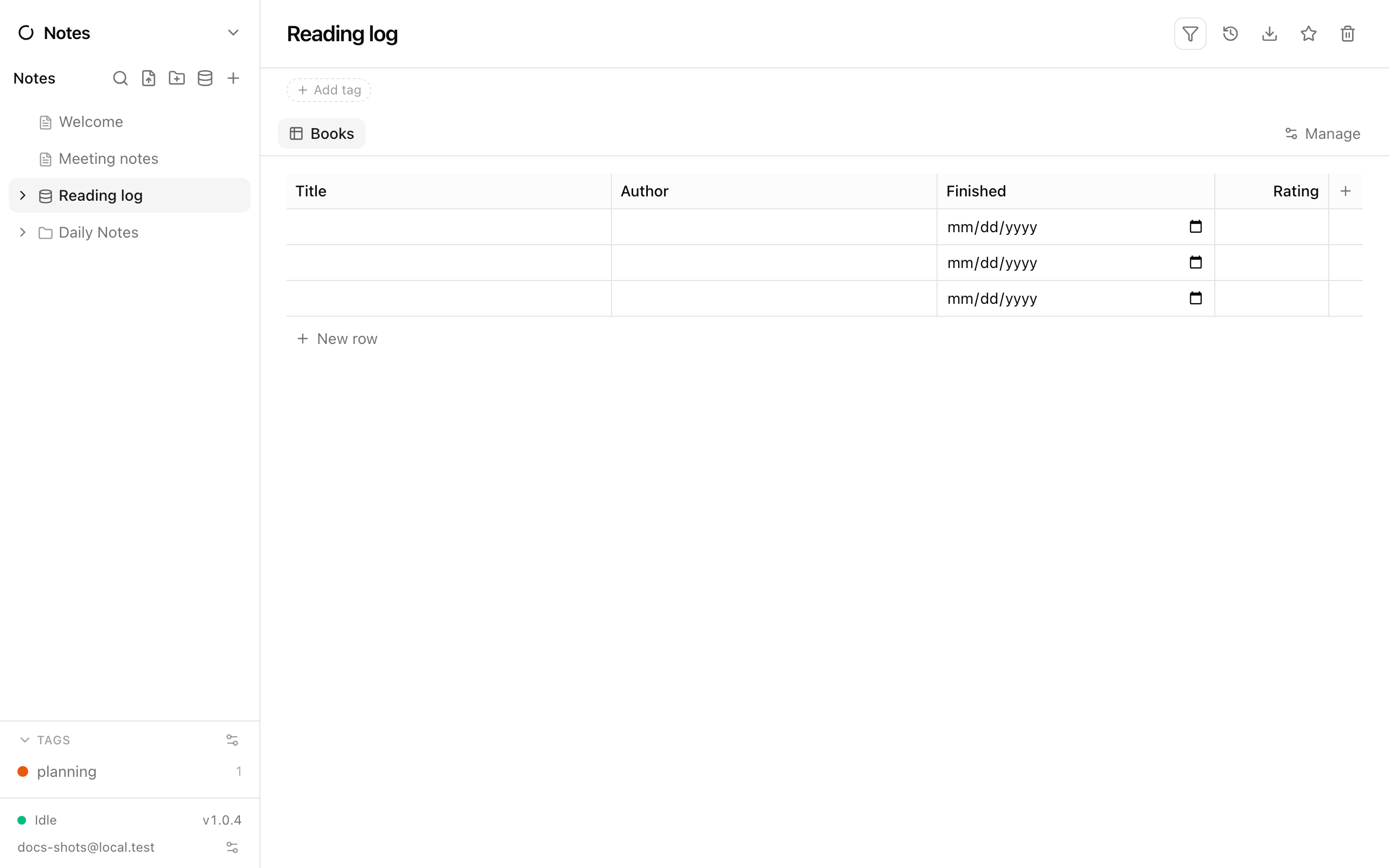
- Tables have columns of type Text, Number, Date, Checkbox, Select, or Currency. Add column, Edit column, Rename table, and Delete table live in the grid’s header; click a cell to edit it inline; rows are added at the bottom.
- Views belong to the database page, so one view can span tables. A Table view is a grid with its own sort and columns; a Dashboard view is a grid of widgets.
- Manage tables and views lists everything, including hidden ones, with Show in sidebar / Hide from sidebar, Make default view, rename and delete. Visible tables and views appear as sub-items under the database in the page tree.
Dashboard widgets
Section titled “Dashboard widgets”Add widget offers:
| Widget | What it shows |
|---|---|
| Line chart | A field over time (pick X axis… and Y axis…) |
| Stat | One number from a table: latest, Sum, Count, or Change since the previous row |
| Formula | An expression over tables, e.g. sum(Savings.amount) - sum(Buckets.amount); supports sum, latest, delta, count, and Auto format / number / currency |
| Recent rows | The last N rows of a table |
| Progress bars | One bar per row from a Label…, Value… and Goal… field |
| Section heading | Heading 2 / Heading 3 dividers that fold the widgets beneath them |
Widgets reorder with Move up / Move down, and Edit widget / Delete widget are on each card.
Shortcuts
Section titled “Shortcuts”| Keys | Action |
|---|---|
| / | Block menu |
| [ | Link to a page |
| @ | Insert a date token |
| Ctrl/⌘+K | Search notes |
| Ctrl+Enter / Escape | Commit / cancel a widget’s source |
| n · n n · n c in the palette | Jump to Notes · new note · capture to Inbox |
See also
Section titled “See also”- Tutorial: a notes workspace
- Vaults — end-to-end encrypted subtrees
- History
- Search
- Your data — exports and imports