
Split view
Split view puts two panes next to each other in the Ensō window: notes beside your todo list, two different projects, a calendar next to the agenda. Each pane runs a full app.
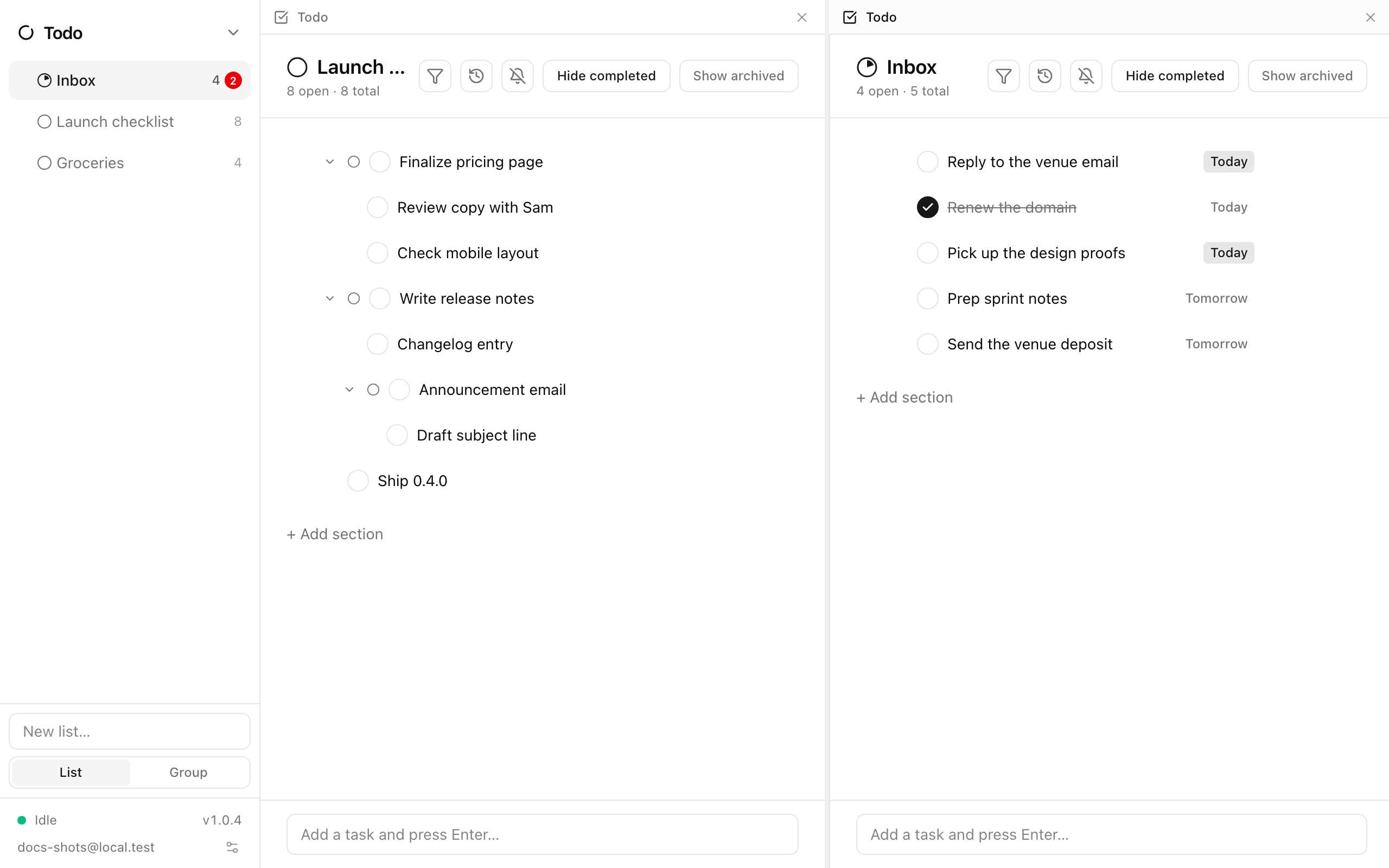
Turning it on and off
Section titled “Turning it on and off”- Open the app switcher at the top of the left rail and choose Split view. The same menu reads Close split view while split.
- Or type
vin the command palette.
Splitting copies the app you are looking at into a new pane on the right and makes that new pane active. There are at most two panes.
Working with panes
Section titled “Working with panes”- Activating a pane. Click anywhere in a pane (or move focus into it) to make it active. The active pane’s top bar is tinted; the rail’s sidebar switches to that pane’s app, and the address bar follows it.
- Changing an app. With a pane active, pick any app from the app switcher — or use a palette shortcut such as
n— and that pane switches. You can open the same app in both panes; each keeps its own selection (two todo lists, two notes pages). - Closing a pane. Each pane’s top bar has a × (Close pane). The remaining pane takes the full width. Close split view in the app switcher closes the inactive pane, so what you are looking at stays. The last pane can never be closed.
- Resizing. Drag the divider between the panes. Either pane can take between a quarter and three quarters of the width.
Search results and the palette’s n n (new note) prefer a pane that already shows the target app rather than replacing the app in your active pane. “Go to” commands and the app switcher do replace it, so you can deliberately open the same app twice.
Persistence
Section titled “Persistence”The layout — which apps, which pane is active, and the split ratio — is remembered on this device and restored the next time you open Ensō.