
Todo
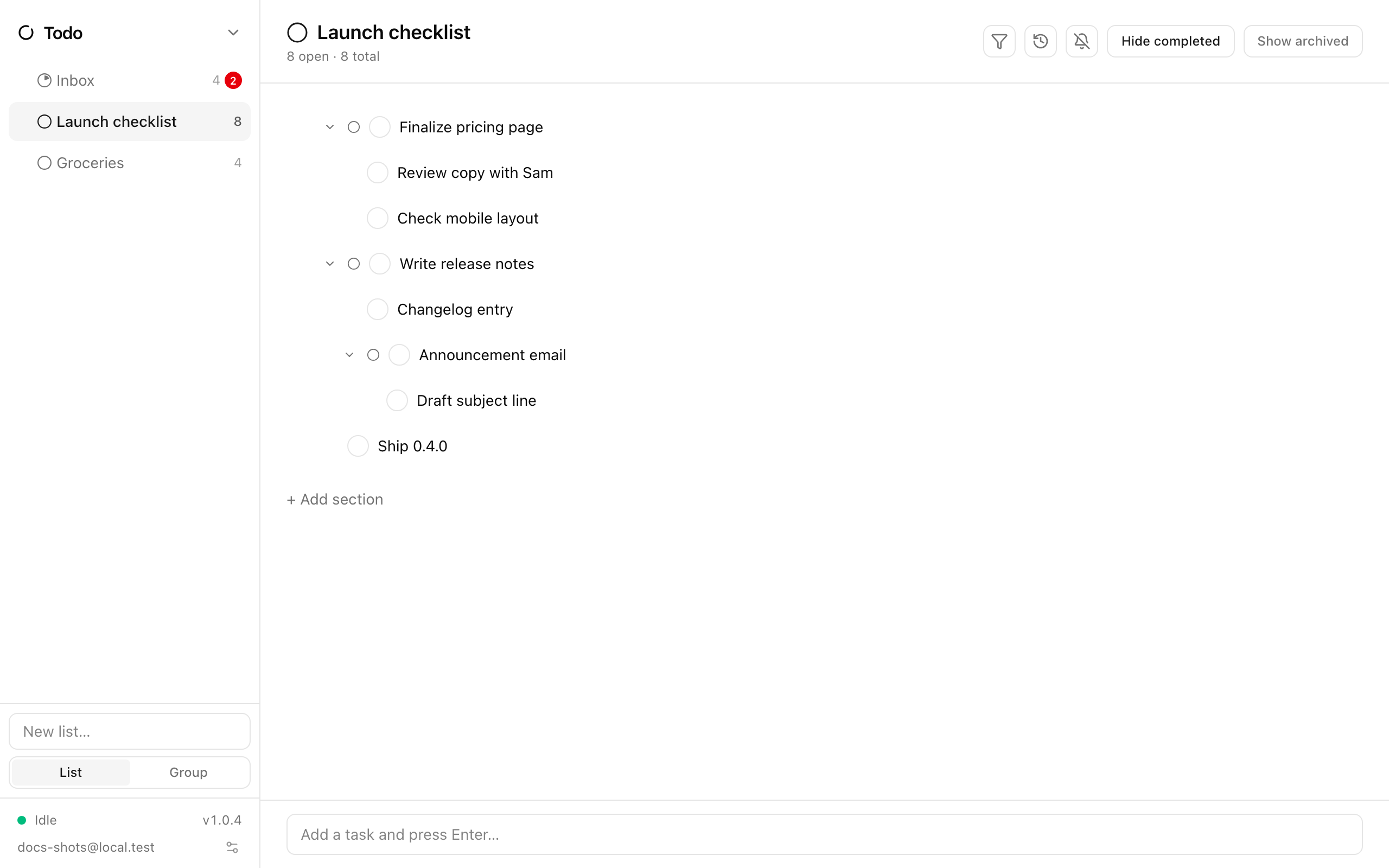
Todo is Ensō’s task manager. Tasks live in lists, lists can be organised into groups, and inside a list you can break work into sections and nest subtasks to any depth. Due dates and repeat rules feed the Agenda and Calendar, and every change syncs to your other devices.
Lists and groups
Section titled “Lists and groups”The sidebar holds your lists. Use the field at the bottom to add one — switch it between New list… and New group…. A group is a folder-like header that holds lists; groups hold no tasks themselves. Drag lists to reorder them or move them into a group.
- Right-click a list for Delete list (this removes its sub-lists and tasks too, after a confirmation).
- Double-click a list name to rename it.
- The Inbox list is where the command palette’s quick capture (t n) and Agenda’s quick-add put new tasks.
- Lists can carry tags for the cross-app view filter — see Tags and filters.
Adding tasks
Section titled “Adding tasks”Type in Add a task and press Enter… at the bottom of a list. The new task lands in whichever section (or ungrouped area) you currently have selected. Double-click a task to rename it inline, or open its details.
Sections
Section titled “Sections”Sections are headings inside a list. Click + Add section, type a name, and press Enter. Drag tasks between sections or into the ungrouped area at the top. Each section header can be collapsed, archived (Archive section / Unarchive section), or deleted — deleting a section keeps its tasks and moves them out of the section.
Subtasks
Section titled “Subtasks”Any task can have subtasks, and subtasks can have their own, to any depth. A parent row shows a small progress pie with how many children are still open, and a chevron to collapse or expand the subtree.
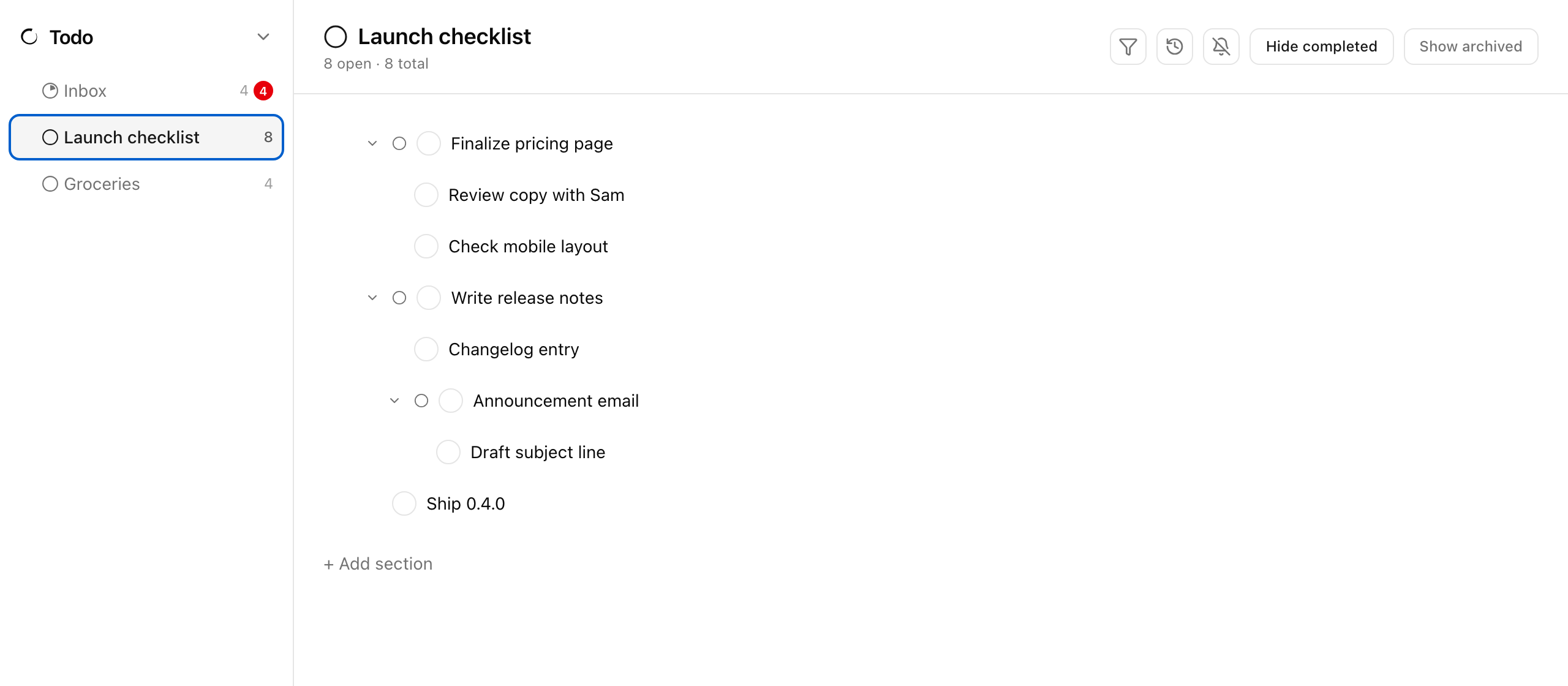
Ways to nest:
| Action | How |
|---|---|
| Indent (make a subtask of the row above) | Select the row, press Tab or Ctrl/⌘+] |
| Outdent | Shift+Tab or Ctrl/⌘+[ |
| Same, with the mouse | Right-click the task → Nesting → Indent / Outdent |
| Add a child directly | Open the task’s details and use Add a subtask in the Subtasks section |
| Drag | Drop a task onto another row to nest it, or above/below to reorder |
Subtasks always stay in the same list and section as their parent.
Completing a parent checks off every open subtask underneath it. Unchecking the parent reopens only the subtasks that were closed by that cascade — anything you had ticked yourself stays done. Finishing the last subtask does not auto-complete the parent.
Task details
Section titled “Task details”Select a task and open its panel (Details) to edit:
- Title
- Due date
- Repeat — Never, Every day / Every N days, Every week / Every N weeks, Every month / Every N months, or Monthly on day… with a day-of-month. A task needs a due date before it can repeat; the rule steps from that date, and completing an occurrence creates the next one.
- Notes — free text
- Subtasks — the list of children plus Add a subtask
Tasks with a due date show a chip on the row that turns red when overdue and highlighted when due today.
Completing, archiving, moving
Section titled “Completing, archiving, moving”- Click the checkbox to complete. A checked task stays in place briefly, then moves to the completed group. Toggle Show completed / Hide completed in the list header.
- Archive task / Unarchive task tucks a task out of the way without completing it; Show archived / Hide archived reveals them.
- Right-click a task → Move to lists every other list you can send it to. Moving a task moves its subtasks with it.
- Delete task asks for confirmation and tells you how many subtasks will go with it.
Notifications
Section titled “Notifications”The bell in the header turns on Notify me when tasks are due today. Ensō asks your browser or operating system for permission the first time.
List activity
Section titled “List activity”The clock button in the list header toggles Show list activity / Hide list activity: a timeline of every change to that list — tasks added, completed, renamed, moved — from any device. See History.
Shortcuts
Section titled “Shortcuts”| Keys | Action |
|---|---|
| Enter in the add field | Add a task |
| Tab / Shift+Tab | Indent / outdent the selected task |
| Ctrl/⌘+] / Ctrl/⌘+[ | Indent / outdent |
| Escape | Cancel an inline edit or close a menu |
| t in the command palette | Jump to Todo |
| t n in the palette | New task in Inbox |
See also
Section titled “See also”- Agenda — today’s due and overdue tasks
- History — per-list activity
- Tags and filters
- Keyboard reference