
Set up a vault
A vault encrypts the items you put in it with a password only you know — the server stores them but can never read them. You’ll create one, keep its recovery code safe, secure a todo list and a notes page in it, and practise locking and unlocking, including on a second device. About 10 minutes.
What you’ll need
Section titled “What you’ll need”- Ensō open and signed in
- A password manager or another safe place for the recovery code
- Something worth protecting: a notes page, todo list, reading list, calendar, or project
1. Pick what to protect
Section titled “1. Pick what to protect”Vaults hold whole containers, not individual items:
| Module | What can go in a vault |
|---|---|
| Notes | A top-level page (with all its sub-pages) |
| Todo | A list (the built-in Inbox always stays outside) |
| Reading | A reading list |
| Calendar | A calendar |
| Projects | A project |
For this tutorial, create a todo list called Finance and a top-level notes page called Accounts if you don’t have something already.
2. Create the vault
Section titled “2. Create the vault”- Click the Settings gear at the bottom of the left rail and scroll to Vaults.
- Click New vault.
- Enter a Vault name (e.g. Finance), a Vault password (min 8 characters), and Confirm password. This password is separate from your account password.
- Click Create vault.
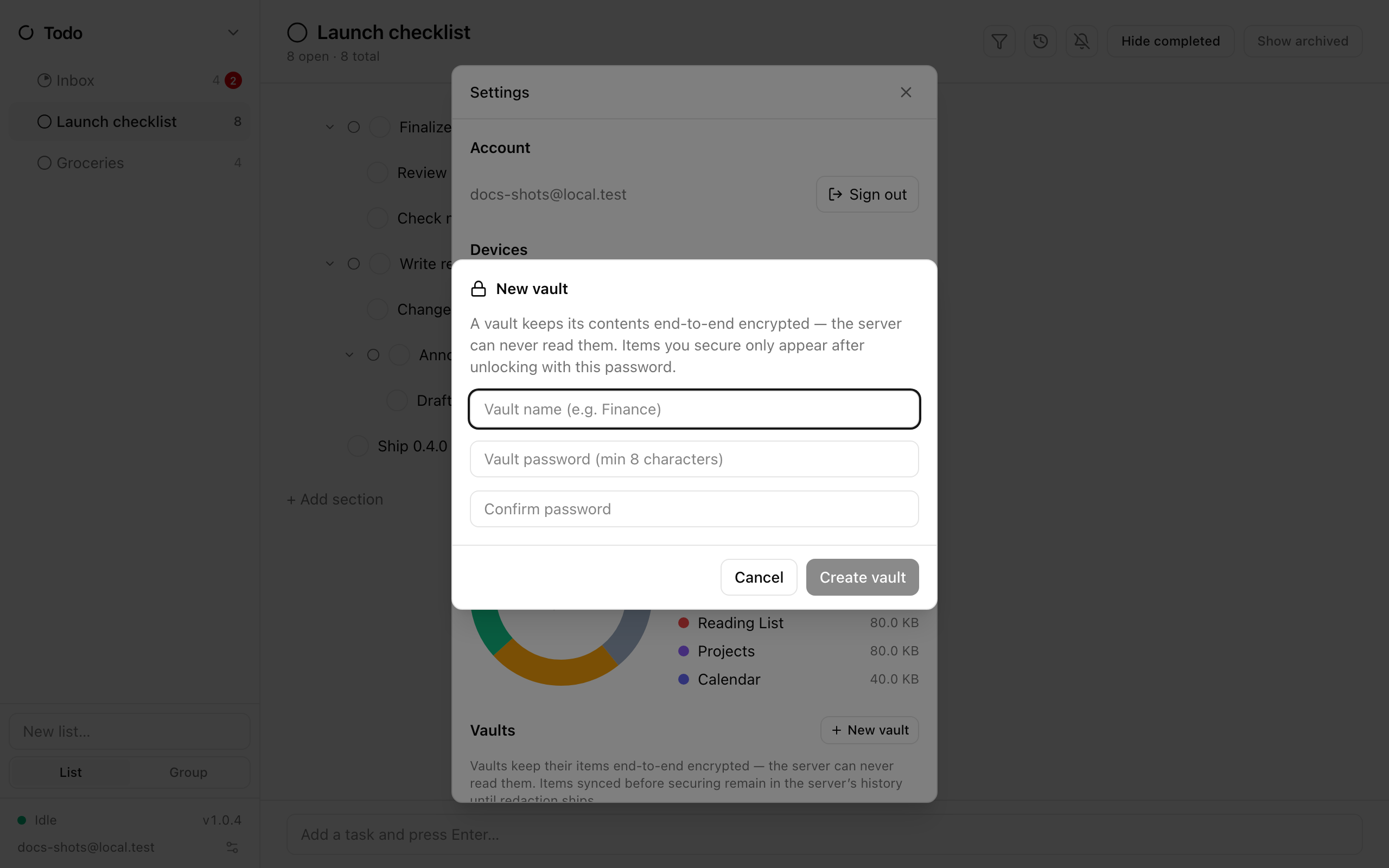
3. Save the recovery code
Section titled “3. Save the recovery code”The next screen, Save your recovery code, shows a code in the form XXXX-XXXX-XXXX-….
- Click Copy recovery code (you’ll see Copied.) and paste it into your password manager, or write it down and store it somewhere safe.
- Only then click I saved it — done.
4. Secure items in it
Section titled “4. Secure items in it”Back in Settings → Vaults, the new vault is listed, unlocked.
- Under Secured items, open Add an item to this vault…. Items are listed by app:
TODO: Finance,NOTES: Accounts, and so on. - Choose one and click Secure. Repeat for the other.
Each secured item appears in the row with a Remove link that moves it back out. Now open Todo or Notes: a Vaults section sits in the sidebar with your vault, open, and the list or page nested under it. Everything works as before — editing, search, sync — while the vault is unlocked.
5. Lock and unlock
Section titled “5. Lock and unlock”- Hover the vault in the sidebar and click Lock now (or use Lock now in Settings).
- The vault shows a lock icon and LOCKED; its contents vanish from the sidebar, from search, and from notifications until it’s opened again.
- Click the locked vault. In Unlock “Finance”, type the Vault password and click Unlock. A wrong one says Wrong password.
Forgot the password? Click Forgot password? Use recovery code in the same dialog and paste the code. Then set a new password from the vault’s Change password link in Settings (Current password or recovery code → New password → Save). The original recovery code keeps working afterwards.
6. Unlock on a second device
Section titled “6. Unlock on a second device”There’s nothing to set up. Sign in to Ensō on another device — the vault is already there, locked, after the next sync. Click it and enter the same vault password (or recovery code).
Unlocking is per device: opening the vault on your laptop doesn’t open it on your phone, and nothing about it is ever written to disk unencrypted.
7. Let it relock itself
Section titled “7. Let it relock itself”Each vault row in Settings has Auto-lock after with 1 minute, 5 minutes, 15 minutes, 1 hour, or Never (until app close). The default is 5 minutes of no clicks or keystrokes. Every vault is also locked whenever the app is opened, regardless of this setting.
Where next
Section titled “Where next”- Vaults — what the server can and can’t see, page history, export, and limitations
- Your data — exports include vaults, still encrypted
- Use Ensō on two devices