
Vaults
A vault is a named group of items protected by its own password. Everything inside is encrypted on your device before it is synced; the server only ever stores scrambled data it cannot read. You can have several vaults, each with a different password.
What a vault holds
Section titled “What a vault holds”Vaults secure top-level containers:
- a todo list
- a calendar
- a project
- a reading list
- a notes folder (or top-level page) — the most common use
Securing a container secures everything in it — the tasks in the list, the pages in the folder, and so on.
Creating a vault
Section titled “Creating a vault”- Open Settings (the gear at the bottom of the left rail) and go to Vaults.
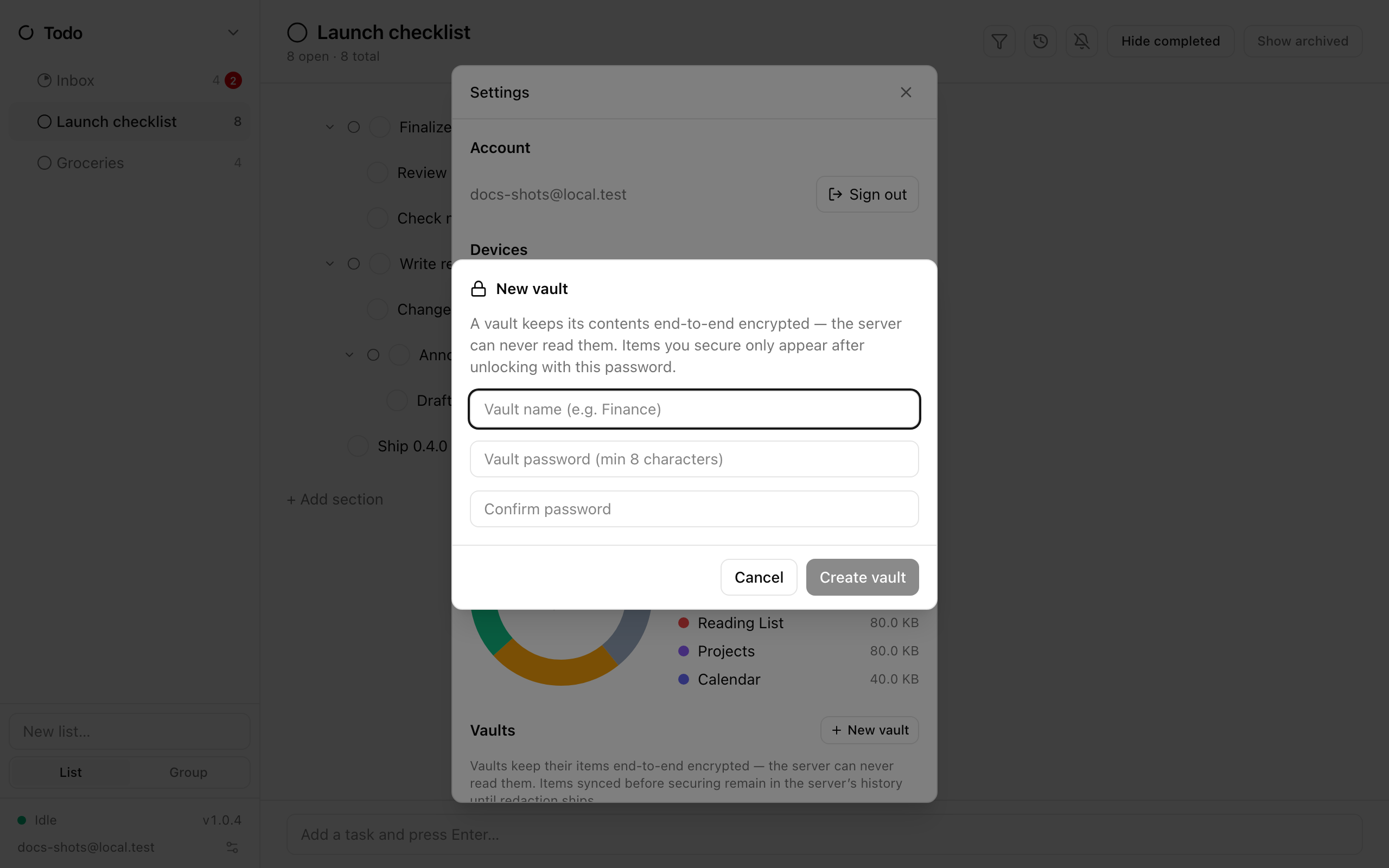
- Click New vault. Give it a name (e.g. “Finance”) and a password of at least 8 characters, then confirm the password.
- Save your recovery code. The next screen shows a one-time recovery code with a copy button. Store it somewhere safe, then confirm that you saved it.
- Back in Settings → Vaults, use Add an item to this vault… to pick the list, calendar, project, reading list or notes folder to secure. Remove next to a secured item takes it back out of the vault.
Locked and unlocked
Section titled “Locked and unlocked”Every vault starts locked whenever you open Ensō. A locked vault appears as a single row with a lock icon under a Vaults heading in the sidebar of each app it belongs to; nothing inside is on the device while it is locked, so it does not show up in views, search or notifications.
- Unlocking. Click the locked row (or press Enter on it). Enter the Vault password, or choose Forgot password? Use recovery code. Unlocking takes a moment on purpose — the password is deliberately slow to check. Once unlocked, the vault’s contents behave like any other items: they open, edit, search and sync normally.
- Locking. Hover the unlocked row and click the lock icon (Lock now), or use Settings → Vaults. Locking removes the readable copy from the device again.
Auto-lock
Section titled “Auto-lock”Each vault has an Auto-lock after setting in Settings → Vaults: 1 minute, 5 minutes, 15 minutes, 1 hour, or Never (until app close). The timer counts idle time — any click or keypress in Ensō resets it — and is checked every 15 seconds, so a vault relocks within about 15 seconds of its interval elapsing. Closing the app always locks every vault, whatever the setting.
On another device
Section titled “On another device”Vaults sync like everything else, but only in encrypted form. On a second device the vault appears locked; enter the same password (or the recovery code) to unlock it there. Unlocking on one device does not unlock it on another.
Changing the password
Section titled “Changing the password”In Settings → Vaults, enter the Current password or recovery code and a New password. The recovery code keeps working after a password change.
Deleting a vault
Section titled “Deleting a vault”Delete forever removes the vault and everything in it, on every device. Deleting a locked vault abandons its encrypted contents. This cannot be undone.
What the server can see
Section titled “What the server can see”The server stores only ciphertext for vault contents — titles, text and tags included. What it can see is the vault’s name, which apps it belongs to, how many items it holds, their sizes, and when they were edited.
Limitations
Section titled “Limitations”- Notes databases cannot be created inside a vault or moved into one yet.
- A locked vault’s contents are invisible to search, the view filter, and reminders — unlock first.
- Securing a reading list drops the server’s offline copy of its pages.
- The vault row itself always stays visible in the sidebar, even under a view filter, so you can always reach lock/unlock.
See also: Set up a vault.