
History
History keeps a record of everything that changes in Ensō — a task completed on your phone, a page edited on your laptop, a project row moved — and shows it as one timeline. Each list and page also has its own activity panel, and notes pages can be previewed and restored as they were at any recorded moment.
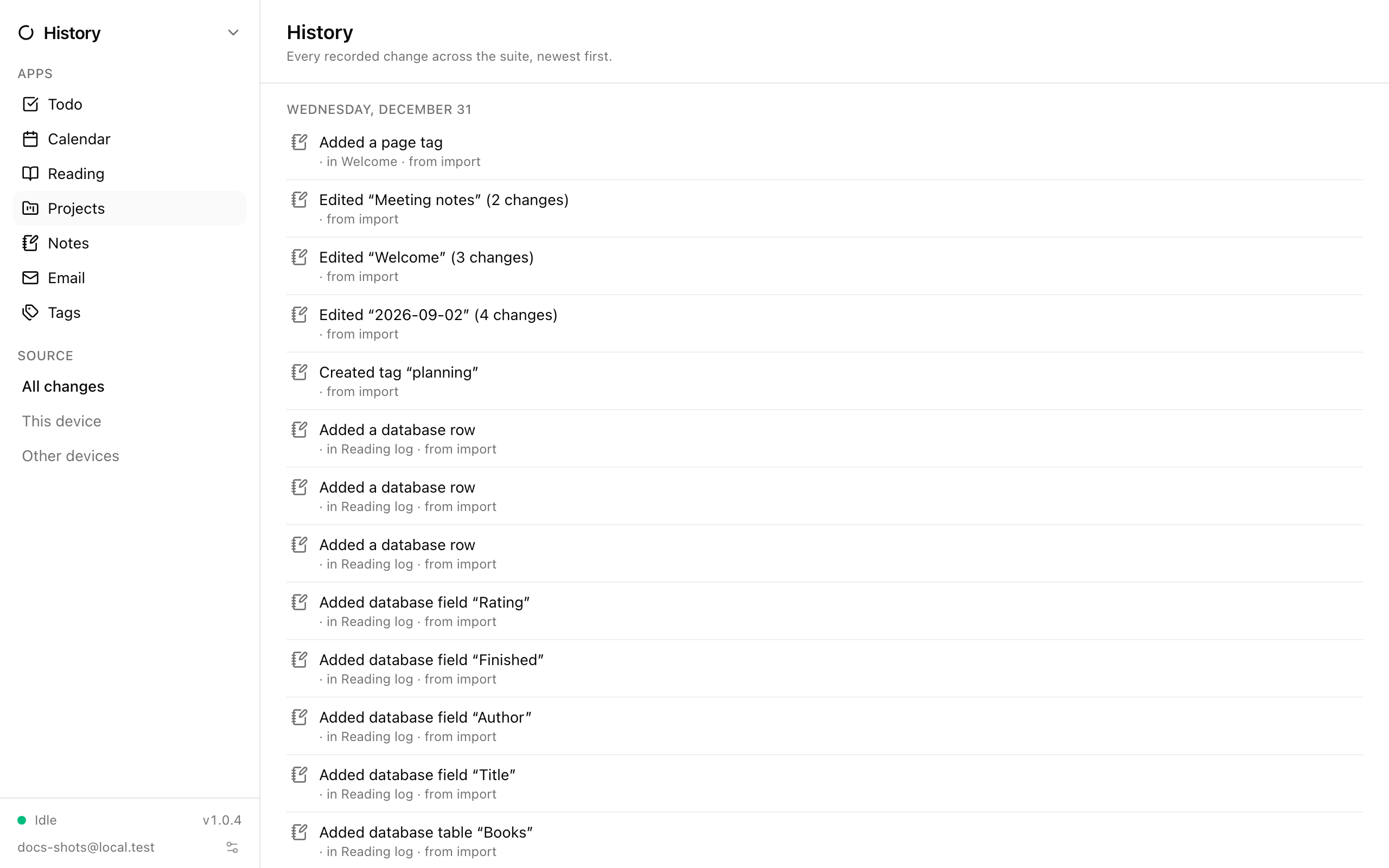
The feed
Section titled “The feed”Open History (h in the command palette) for a feed grouped by day — Today, Yesterday, then dates. Each row is a plain sentence such as Completed “Buy milk” or Edited “Journal” (12 changes): runs of edits to one page within a few minutes are folded into a single row so the feed stays readable. Rows from another device say so.
Click Load older changes at the bottom to page further back.
Filters
Section titled “Filters”The sidebar filters the feed:
- All changes, or any combination of Todo, Notes, Calendar, Reading, Projects, Email, and Tags.
- This device / Other devices.
Jumping to the item
Section titled “Jumping to the item”Click a row to open what it refers to: a todo row opens its list, a note row opens the page. Calendar, reading, project and email rows open the respective app.
Per-item activity
Section titled “Per-item activity”- Todo: the clock button in a list header toggles Show list activity, a panel with that list’s changes — tasks added, renamed, completed, moved, sections edited.
- Notes: Show page history in a page’s Page actions menu (☰) opens Page history, the timeline for that page and its blocks.
Both panels update live as changes arrive and are available in the desktop-width layout.
Restoring a notes page
Section titled “Restoring a notes page”From Page history, choose View page as of this change on any entry. Ensō rebuilds the page as it stood at that moment and shows it read-only in place of the editor (Reconstructing… while it works). Then:
- Review the preview.
- Click Restore this version. A dialog summarises how many blocks will be changed, re-added, or removed; if the page already matches, it says Nothing would change.
- Confirm Restore.
The restore is applied as ordinary edits, so it syncs like anything else and is itself recorded — you can restore forward again if you change your mind. Images that had been deleted in the meantime won’t come back.
What history records
Section titled “What history records”- Changes you make on this device, including everything before the History feature existed.
- Changes from other devices as they sync in, including edits that lost a conflict — so a sentence overwritten by another device still appears in the feed.
- Nothing from inside a vault: vault contents are never written to history, and an item’s earlier history is cleared when it enters a vault.
- Filter to Other devices to see what changed since you last used this one.
- Use Page history before a big rewrite; you can always get the earlier version back.
- The feed is local to each device and never leaves it; it’s not part of your data export.