
Agenda
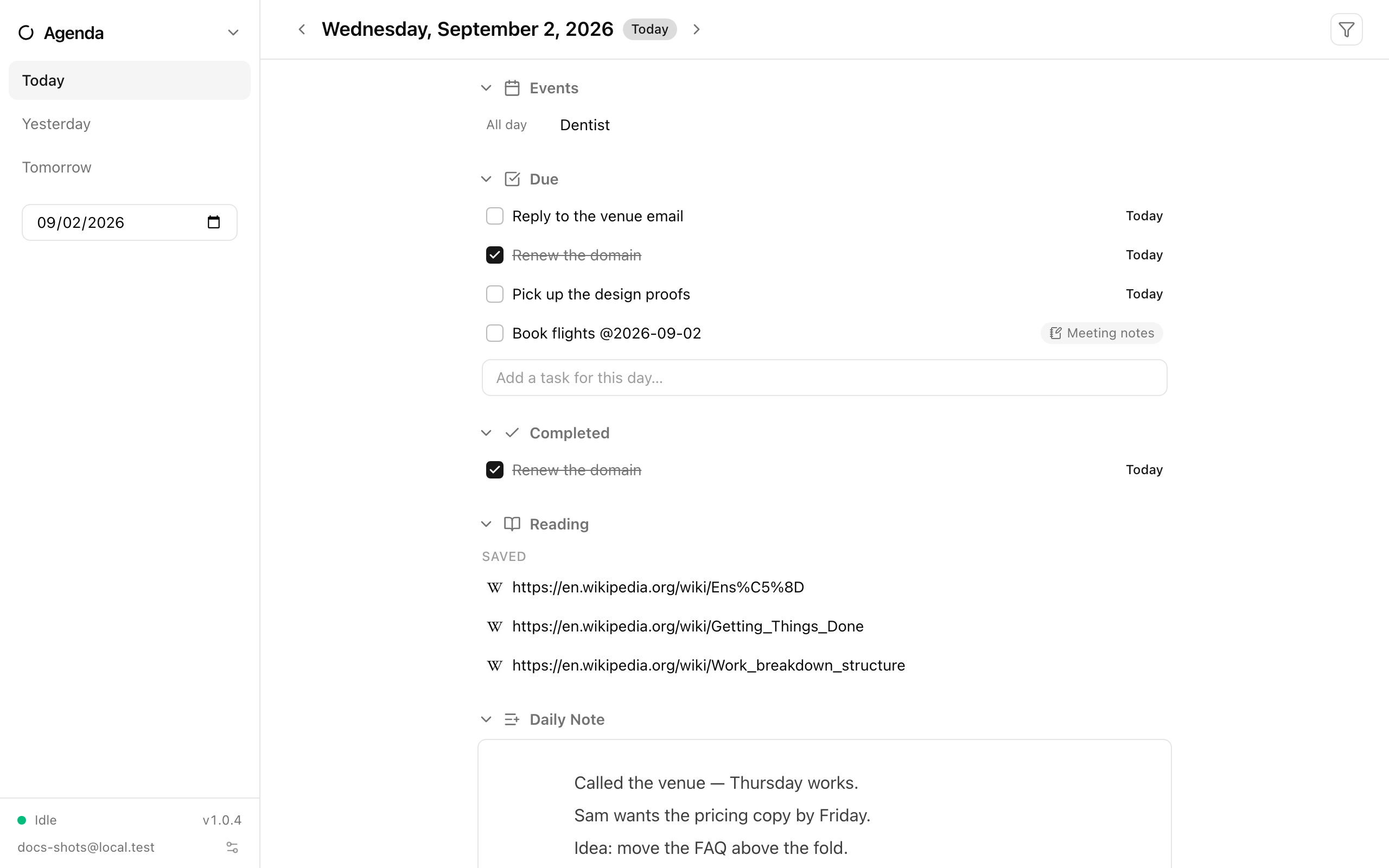
Agenda is the “what’s happening today?” screen. It pulls together everything from the other Ensō apps that lands on one day — calendar events, tasks due, tasks you finished or added, pages you saved or finished reading, and the day’s note — so you can start the morning from one place and plan tomorrow from the same screen.
Moving between days
Section titled “Moving between days”- Use the Previous day / Next day arrows in the header, or the Today button to jump back.
- The sidebar offers Yesterday, Today, and Tomorrow links plus a date picker for any other day.
- Press a in the command palette (Ctrl+Space) to jump to Agenda from anywhere.
Browsing to another day never creates anything — the day page only shows what already exists until you add to it.
Sections
Section titled “Sections”Sections appear in a fixed order. Empty sections are hidden, so a quiet day is a short page.
| Section | What it shows |
|---|---|
| Events | Calendar events on this day. Clicking one opens the Calendar app. Shows “No events” when the day is clear. |
| Overdue | Open tasks whose due date has passed. Only shown when viewing today — overdue work rolls forward rather than cluttering past days. |
| Due | Tasks due on this day, including ones already checked off (shown checked). The quick-add row lives here. |
| Completed | Tasks you finished on this day. |
| Added | Tasks you created on this day. |
| Reading | Two sub-lists, Saved and Finished, for reading-list pages you saved or marked read that day. Clicking a row opens the page’s URL. |
| Daily Note | The note for this day (see below). |
Task rows click through to the Todo app; checking a task off works exactly as it does in Todo, including repeating tasks, which spawn their next occurrence.
Quick-add
Section titled “Quick-add”Type in Add a task for this day… and press Enter. The task goes into your Inbox list with its due date set to the day you are viewing — so planning tomorrow is just “arrow forward, type, Enter”.
Checklist items from Notes
Section titled “Checklist items from Notes”Checklists inside Notes pages show up in the Due and Overdue sections when an item carries a date written as @YYYY-MM-DD (for example @2026-08-22). In the notes editor, typing @ opens a small menu that inserts Today, Tomorrow, Next week, or a date you type.
- Rows from notes show a chip with the page title; clicking the row opens that page in Notes.
- Checking the box on the Agenda updates the note itself.
- Undated checklist items never appear — an undated checklist is page content, not a commitment.
- Items inherit their page’s visibility under the view filter, and pages inside a locked vault are not shown.
Daily note
Section titled “Daily note”Each day can have one note, kept in the Notes app under a root folder called Daily Notes with a page named after the date (2026-08-22). Agenda finds it if it exists; otherwise it shows an Add notes for this day placeholder, and only clicking that creates the page. The editor on the Agenda is the real Notes editor — what you type here is the same page you’ll find in Notes, and vice versa.
- Keep the Inbox list for quick-adds and file tasks into real lists later from Todo.
- Use a split view (v in the palette) with Agenda on one side and Todo or Notes on the other.
- A task in the Due section that you finish stays visible, checked, for the rest of the day — handy for a sense of progress.
See also
Section titled “See also”- Todo — lists, due dates, and repeating tasks
- Notes — daily notes and
@date tokens - Calendar — the events that appear here
- Command palette
- Tutorial: your first day