
Calendar
Calendar is a simple month view. Create as many calendars as you like — each gets a color — add events by title and date, and see your Todo due dates on the same grid, so the month shows both what is scheduled and what is owed.
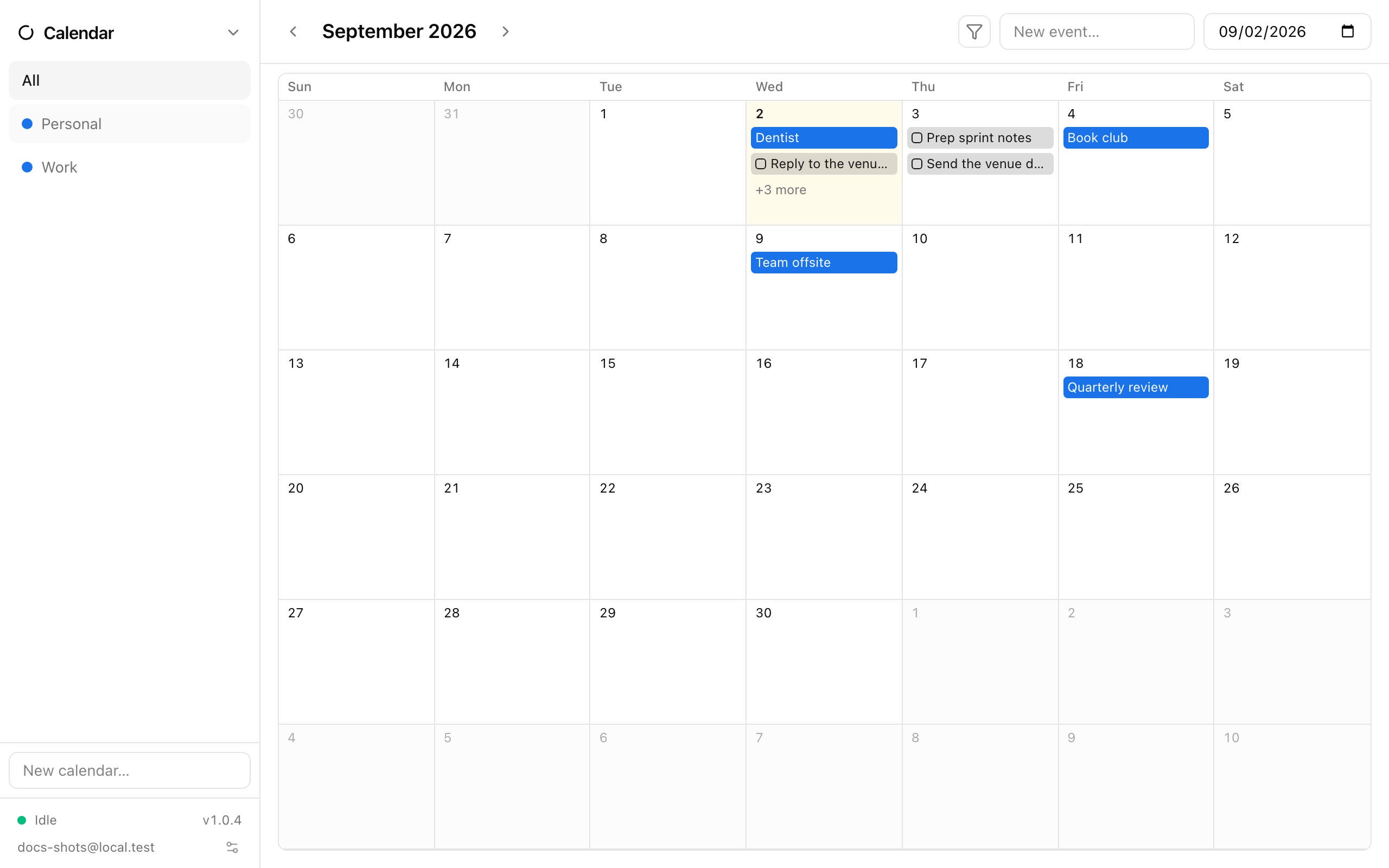
Calendars
Section titled “Calendars”The sidebar lists your calendars, each with a colored dot, under an All entry that shows everything at once. Click a calendar to show only its events; click All to go back.
- Add a calendar with New calendar… and Enter.
- Right-click a calendar to give it tags for the cross-app view filter (Tags and filters). Under an active filter, only events from matching calendars are shown.
Events are drawn in their calendar’s color, so with a few calendars (say Home, Work, Travel) the month is readable at a glance.
Navigating
Section titled “Navigating”Use the Previous month / Next month arrows in the header. Today’s cell is highlighted. Days outside the current month are dimmed but still show their events.
Press c in the command palette (Ctrl+Space) to jump here from any app.
Adding events
Section titled “Adding events”Type a title in New event…, choose a date, and press Enter. The event goes into the calendar you currently have selected (or your first calendar when All is selected). Events created this way are all-day events on the chosen date.
Tasks on the calendar
Section titled “Tasks on the calendar”Each day cell also shows:
- Tasks from the Todo app that are due that day, marked with a small checkbox outline.
- A N completed line when you finished tasks on that day.
This makes the calendar a quick answer to “what’s due this week?” without switching apps. Completing or rescheduling a task in Todo updates the calendar immediately.
- Events on the Calendar also appear in the Events section of the Agenda for that day; click one there to come back to the calendar.
- Pair Calendar with Todo in a split view (v in the palette) while planning a week.
- Everything here syncs with your other devices and works offline; see Sync and offline.
See also
Section titled “See also”- Agenda
- Todo — due dates and repeating tasks
- Tags and filters