
Use Ensō on two devices
Ensō keeps a full copy of your data on every device and reconciles them through the server. You’ll sign in on two devices, make an edit and watch it arrive, go offline on both and edit anyway, then reconnect and see how the merge plays out. About 20 minutes.
What you’ll need
Section titled “What you’ll need”- Your Ensō account, with its email verified (the banner at the top tells you if it isn’t — syncing waits until then)
- A second device or client: the desktop app on the same computer counts, as does a phone with the web app
1. Install the desktop app
Section titled “1. Install the desktop app”Follow Install for your platform — a Windows installer or a macOS disk image (run it from Applications). Launch it: the sign-in screen is the same one you know from the web.
2. Sign in on both
Section titled “2. Sign in on both”- In a browser, open https://app.ensoapp.io and Log in.
- In the desktop app, Log in with the same email and password.
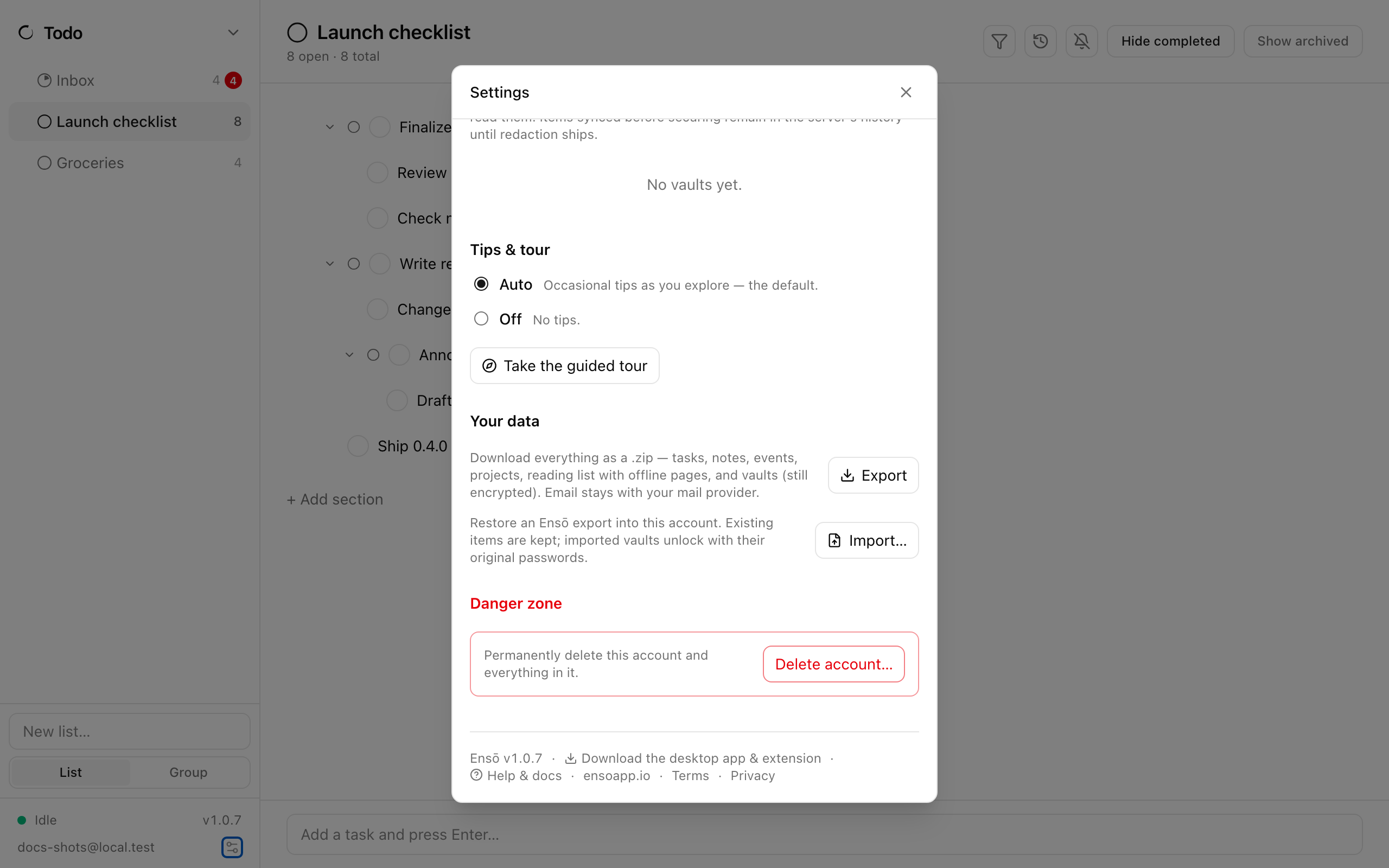
Both open on whichever module you used last. Open Settings on either and look at Devices: each device you’ve signed in on is listed with its platform, when it was last seen, and its version. All browser sessions appear together as a single Web entry.
3. Make an edit and watch it travel
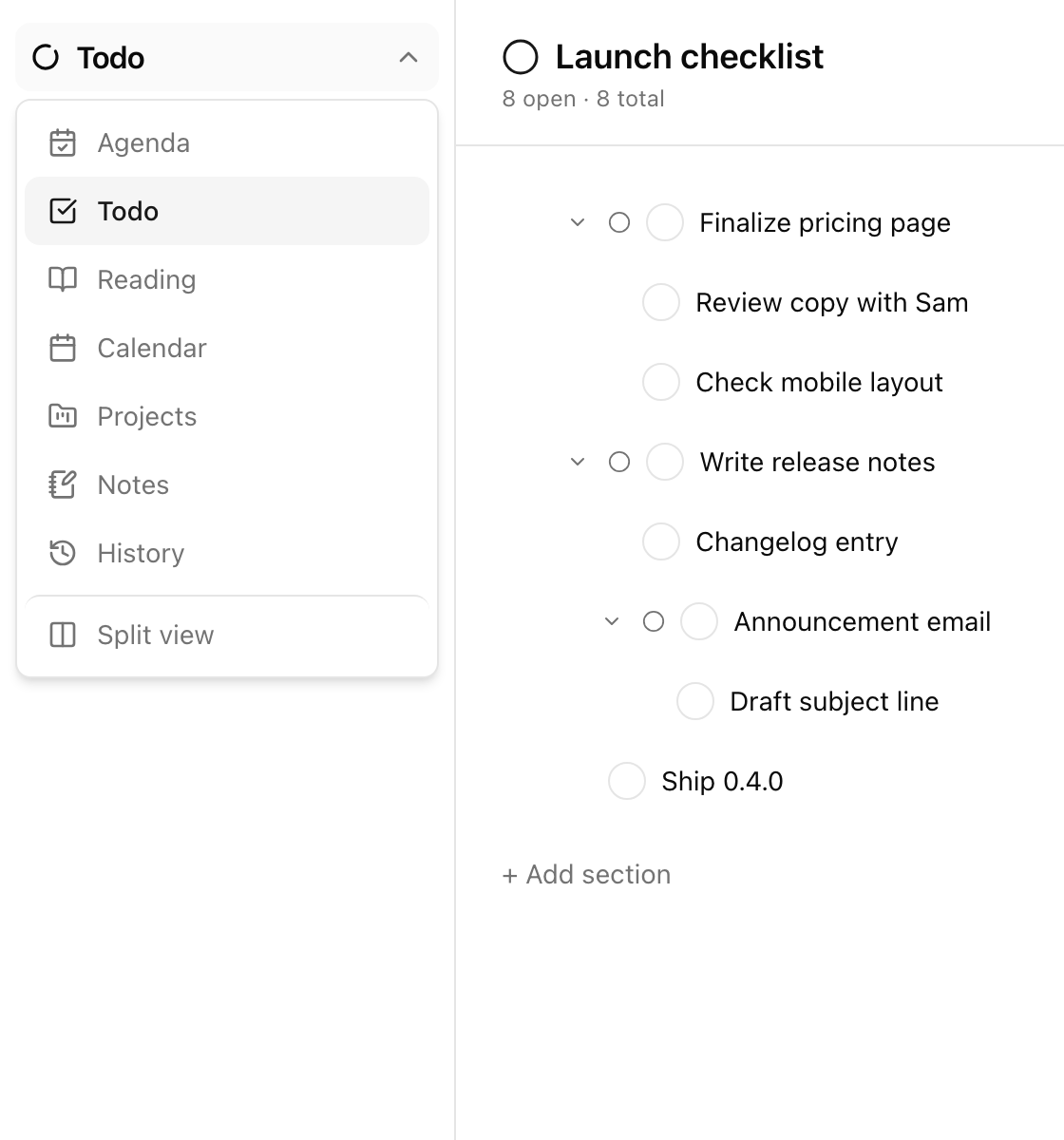
Section titled “3. Make an edit and watch it travel”- On the web, open Todo and add a task:
Synced from the browser. - Switch to the desktop app and watch the same list.
Within about 15 seconds the task appears. That’s the sync loop: every device pushes its changes and pulls everyone else’s every 15 seconds, plus once immediately on sign-in. There’s no sync button — it just runs.
Try it the other way, then try something richer: rename a notes page, tick a task, move a saved page to another list.
4. Read the sync indicator
Section titled “4. Read the sync indicator”At the bottom of the left rail, next to the version number, a small dot and a word show how sync is doing. Hover it for details.
| Indicator | Meaning |
|---|---|
| Green Idle | All changes are exchanged; waiting for the next tick |
| Amber Syncing | A push or pull is in progress |
| Grey Offline (desktop) | The server can’t be reached; edits are queued locally |
| Red Error | Something failed — the hover text says what. In the web app, losing your connection shows this |
| Orange Verify your email / Subscribe to sync | Sync is paused until you do |
| Red Storage full | The server quota is used up; delete pages, attachments, or mail |
5. Go offline and keep working
Section titled “5. Go offline and keep working”- Disconnect the computer from the network (turn Wi-Fi off).
- On the desktop app, add a task
Written offline on desktop. In the web app, addWritten offline in the browser. - Notice the indicator: grey Offline on the desktop, red Error on the web. Nothing else changes — you can keep editing freely.
Every edit is saved on the device instantly and queued for the server. Nothing is lost if you close the app meanwhile.
6. Reconnect and see the merge
Section titled “6. Reconnect and see the merge”Turn Wi-Fi back on. Within a tick or two, both new tasks appear on both devices and the indicator returns to Idle.
Now make a real conflict on purpose:
- Go offline again. On the desktop, rename the same task to
Desktop title; in the browser, rename it toBrowser title. - Reconnect.
The most recent edit wins — per item, by the time it was made — and the other is dropped, so both devices end up with the same title. A delete always beats a concurrent edit.
7. Keep both up to date
Section titled “7. Keep both up to date”The desktop app checks for a new version when it launches. When one is available, an Update to vX.Y.Z — restart button appears at the bottom of the rail; click it to install and relaunch. The web app always runs the latest version. In Settings → Devices, a version shown in amber means that device is on a different build than the one you’re looking at.
Where next
Section titled “Where next”- Sync and offline — the rules in full
- Install — getting Ensō onto your phone from the App Store or Google Play
- Your data — exports, storage quota, and account deletion