
Getting started
Everything you need to go from zero to a synced, offline-first workspace. Each section below has a deeper page elsewhere in the docs; this one gets you oriented.
1. Create an account
Section titled “1. Create an account”Go to app.ensoapp.io and register with an email and a password (at least 8 characters). That’s it — you land in the suite immediately. Your account is what ties your devices together for sync, so use the same one everywhere.
2. Pick your platform
Section titled “2. Pick your platform”You can use any or all of these — they stay in sync:
- Web — app.ensoapp.io in any modern browser. Works offline too.
- Desktop — install the Windows or macOS app. It updates itself and keeps its own local database.
- Phone — install the native app from the App Store or Google Play, or open the web app and use Add to Home Screen for a full-screen browser app.
Per-platform steps and first-launch caveats are in Install.
3. A quick tour
Section titled “3. A quick tour”The rail on the left switches between the suite’s modules.
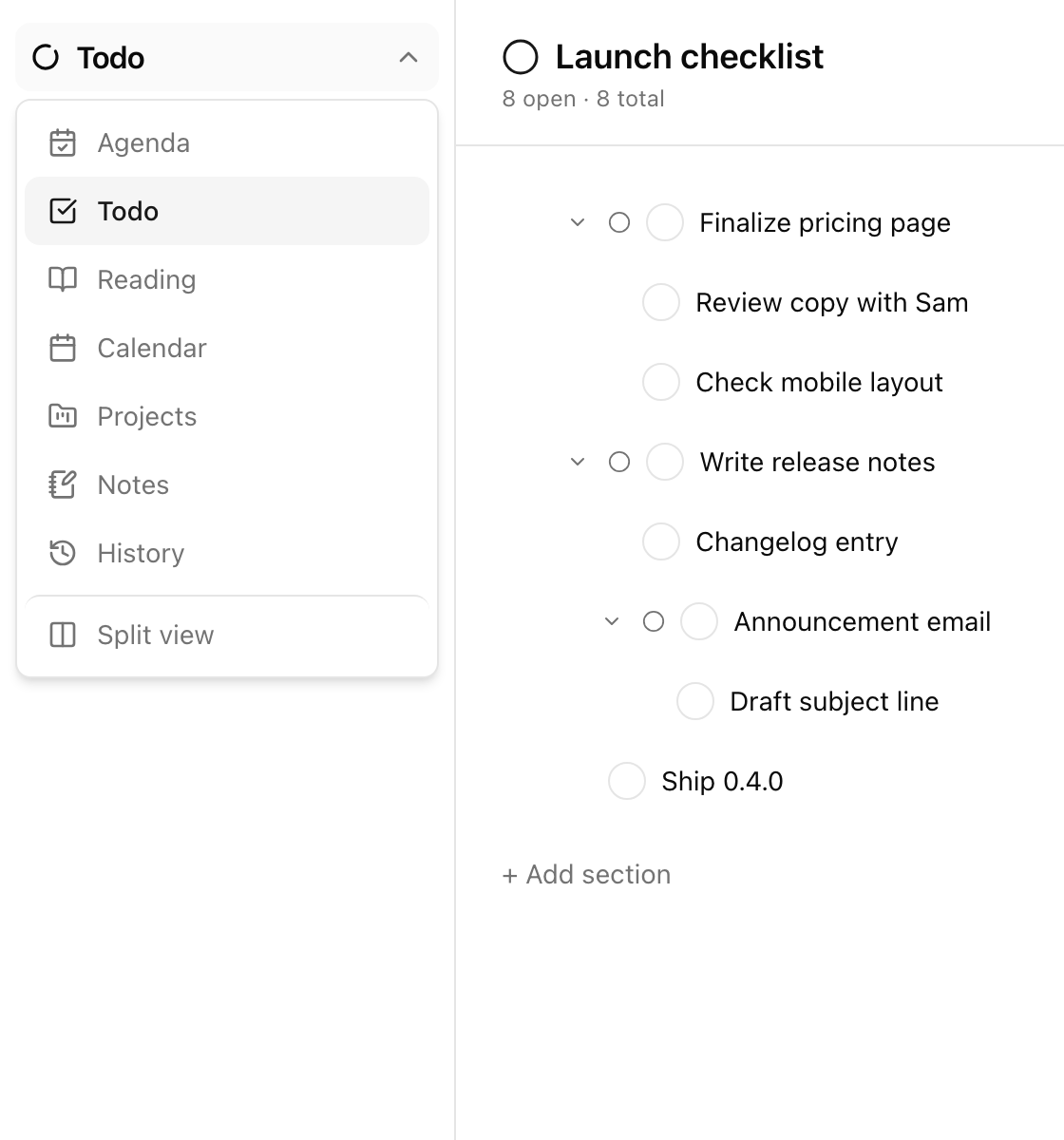
- Agenda — your day at a glance: events, what’s due, what you did, and the day’s note.
- Todo — lists (and groups of lists) with sections, subtasks to any depth, due dates, and recurring tasks.
- Reading — save articles by pasting a URL, mark them read, keep them organized in lists.
- Calendar — month view over one or more color-coded calendars.
- Projects — a keyboard-first outline for planning real projects: Tab/Shift+Tab to indent, milestones, dependencies, and a Gantt pane.
- Notes — a page tree with a block editor. Type
[to link pages; import and export markdown. - Email — connect Gmail or Outlook to read and file mail inside the suite.
- History — everything that changed, across every module, with point-in-time restore for notes.
On desktop, click Split view in the rail to put two modules side by side, and drag the divider between them to resize. See Split view.
4. The command palette
Section titled “4. The command palette”Press Ctrl+Space anywhere (it’s Ctrl, not ⌘, on the Mac too) to open the command palette.
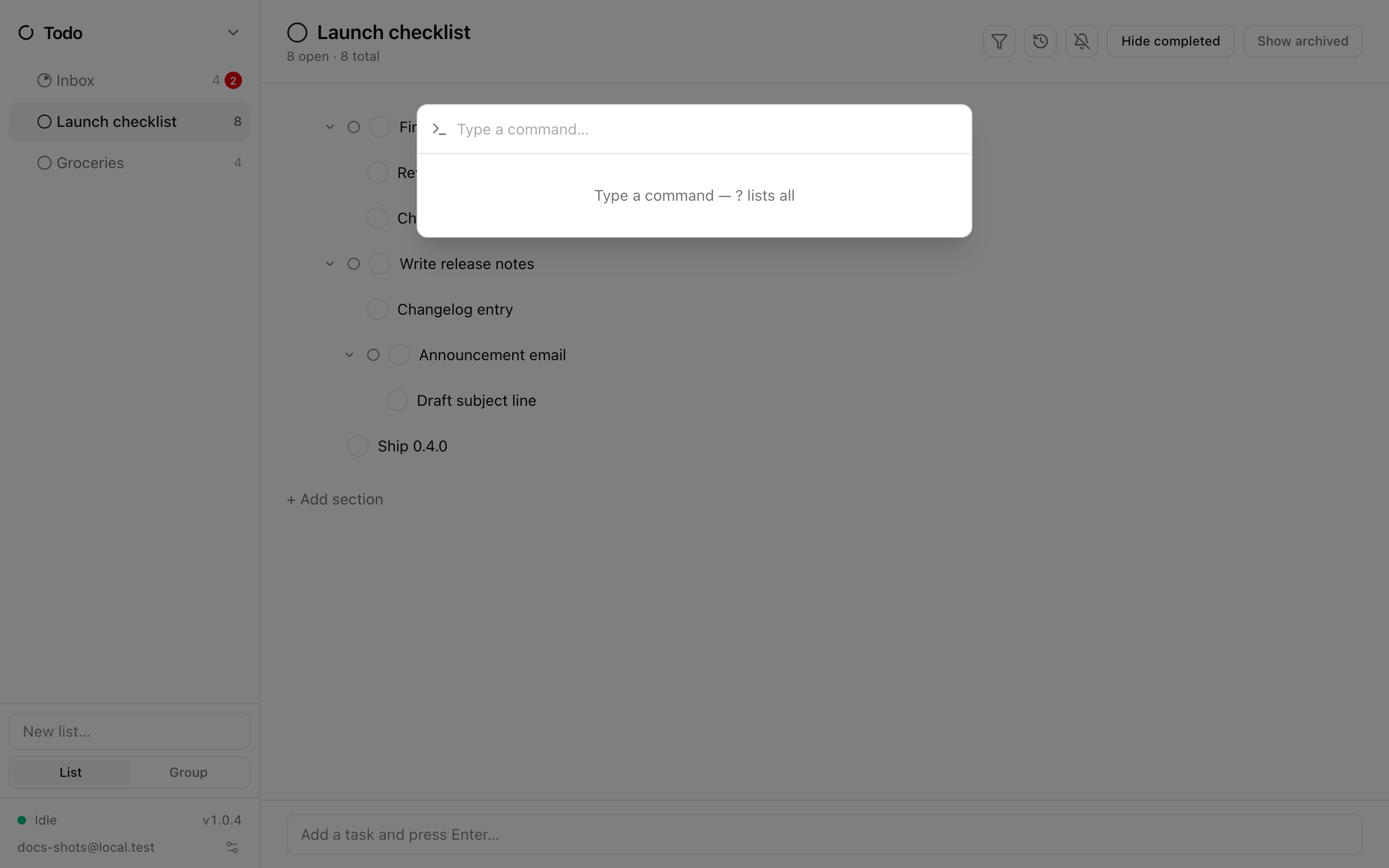
From the palette you can:
- Jump to any module with a single letter:
aAgenda,tTodo,rReading,cCalendar,pProjects,nNotes,eEmail,hHistory. - Capture without leaving what you’re doing:
t nadds a new todo to your Inbox,n ccaptures text onto your Inbox note,n ncreates a new note. - Type
sto search,vto toggle split view, or?to list every command.
Ctrl/⌘+F opens global search across the whole suite. More in Command palette and Search.
5. Working offline
Section titled “5. Working offline”There’s nothing to configure. Every device keeps a full local copy of your data, so Ensō works on a plane exactly as it does at your desk — on the web app too, not just the desktop app.
When you’re back online, a background sync reconciles your devices with the server every 15 seconds. If two devices edited the same thing while apart, the same merge rules run everywhere, so every device ends up with the identical result. Details in Sync and offline.
6. Vaults
Section titled “6. Vaults”A vault locks part of your workspace — a notes folder, todo list, reading list, calendar, or project — behind its own password with end-to-end encryption. The server only ever stores ciphertext it cannot read.
See Vaults, or follow the Set up a vault tutorial.
7. Chrome extension
Section titled “7. Chrome extension”The extension saves the page you’re on to your reading list, along with a complete offline copy of the page.
- Install Ensō Reading from the Chrome Web Store — or click Browser extension in Reading, which opens the same listing.
- Click Add to Chrome and accept the permissions prompt.
- Pin the Ensō button, open any article, and click it — the page and its offline copy appear in your Reading module.
Running your own Ensō server? The Web Store version only talks to app.ensoapp.io, so install the extension unpacked instead.
Full details in Chrome extension.
Where next
Section titled “Where next”- Your first day — set up your Inbox, plan today, and get the palette under your fingers.
- Use Ensō on two devices — install on a second device and see sync in action.
- Plan a project, Build a notes workspace, A reading workflow, Set up a vault.
- Keyboard reference — every shortcut in one place.