
Projects
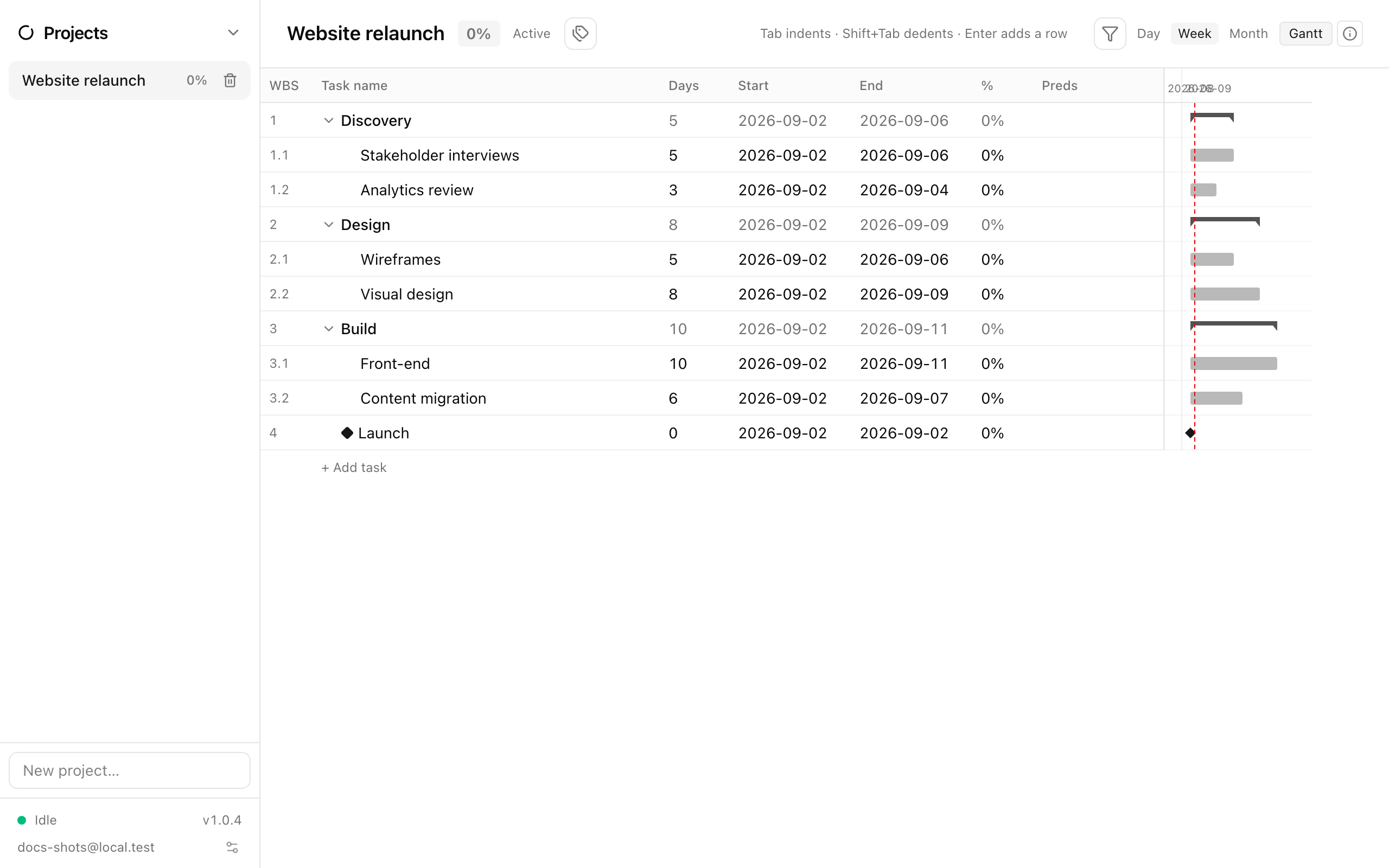
Projects is a lightweight project planner in the spirit of Microsoft Project. A project is one hierarchical outline of items: type a row, press Tab to make it a child of the row above, give it dates or a duration, link it to what must finish first, and watch parent rows roll up their children’s schedule and progress. A Gantt timeline sits beside the outline and stays aligned with it.
Projects
Section titled “Projects”The sidebar lists your projects. Add one with New project… and Enter. The header shows the project name, an overall percent-complete badge, its status, and a Project tags button for the view filter (Tags and filters).
The outline grid
Section titled “The outline grid”Columns are WBS (outline number like 1.2.3), the item name, Days, Start, End, %, and Preds (predecessors). The grid is built for the keyboard:
| Keys | Action |
|---|---|
| Arrow keys | Move between cells |
| Start typing | Edit the current cell |
| Enter | Edit the cell; when already editing, commit and insert a sibling row below |
| Tab / Shift+Tab | Indent / outdent the row (make it a child / promote it) |
| ← / → on the name cell | Collapse / expand the subtree |
| Delete / Backspace on the name cell | Delete the row (asks first when it has children) |
| Escape | Cancel the edit |
Right-click a row for Add row above, Add row below, Complete, Mark n/a / Clear n/a, Tags…, Copy, Cut, Paste, and Delete.
Parents roll up
Section titled “Parents roll up”A row with children is a summary row. Its start is the earliest child start, its end the latest child end, and its percent a duration-weighted average of its children — so its schedule cells are read-only and always true. Collapse state is remembered per project on each device.
Dates and duration
Section titled “Dates and duration”Start, end and days form a triangle; edit any one and the others follow:
- Change Start → the whole bar slides, keeping its duration.
- Change End → duration is recomputed (start is pulled along if you cross it).
- Change Days → the missing date is derived; on an undated row it anchors at today.
Dates are inclusive calendar days; there is no working-day calendar.
Milestones
Section titled “Milestones”Set Days to 0, or use the milestone toggle, and the row becomes a milestone: zero duration, end = start, drawn as a diamond on the Gantt.
Progress, done, and n/a
Section titled “Progress, done, and n/a”Type a number into the % cell. A row at 100 % turns green and struck through; a summary row only reaches 100 when its whole branch does. For work you have decided not to do but want to keep on the list, Mark n/a greys and strikes the row and shows n/a in the percent cell (typing n/a, na or - does the same). n/a rows contribute nothing to a parent’s dates or percent.
Dependencies
Section titled “Dependencies”The Preds cell takes a comma-separated list of WBS numbers, optionally with lag: 1.2, 1.4+3d, 2.1-1d. Links are finish-to-start and advisory: Ensō computes a suggested start (predecessor end + 1 day + lag) and shows it as a marker, but never moves your dates for you. The one exception is a brand-new link to a row with no start date, which takes the suggestion immediately.
Task info panel
Section titled “Task info panel”The Task info button (ⓘ) opens a right-hand panel for the selected row: WBS and name, effective days/start/end/percent, the suggested start, a “summary row” hint on parents, its Predecessors and Successors (with lag and their own percent — click one to jump to it), and a Notes box for free text. Rows with notes show a small note icon after their name.
Gantt timeline
Section titled “Gantt timeline”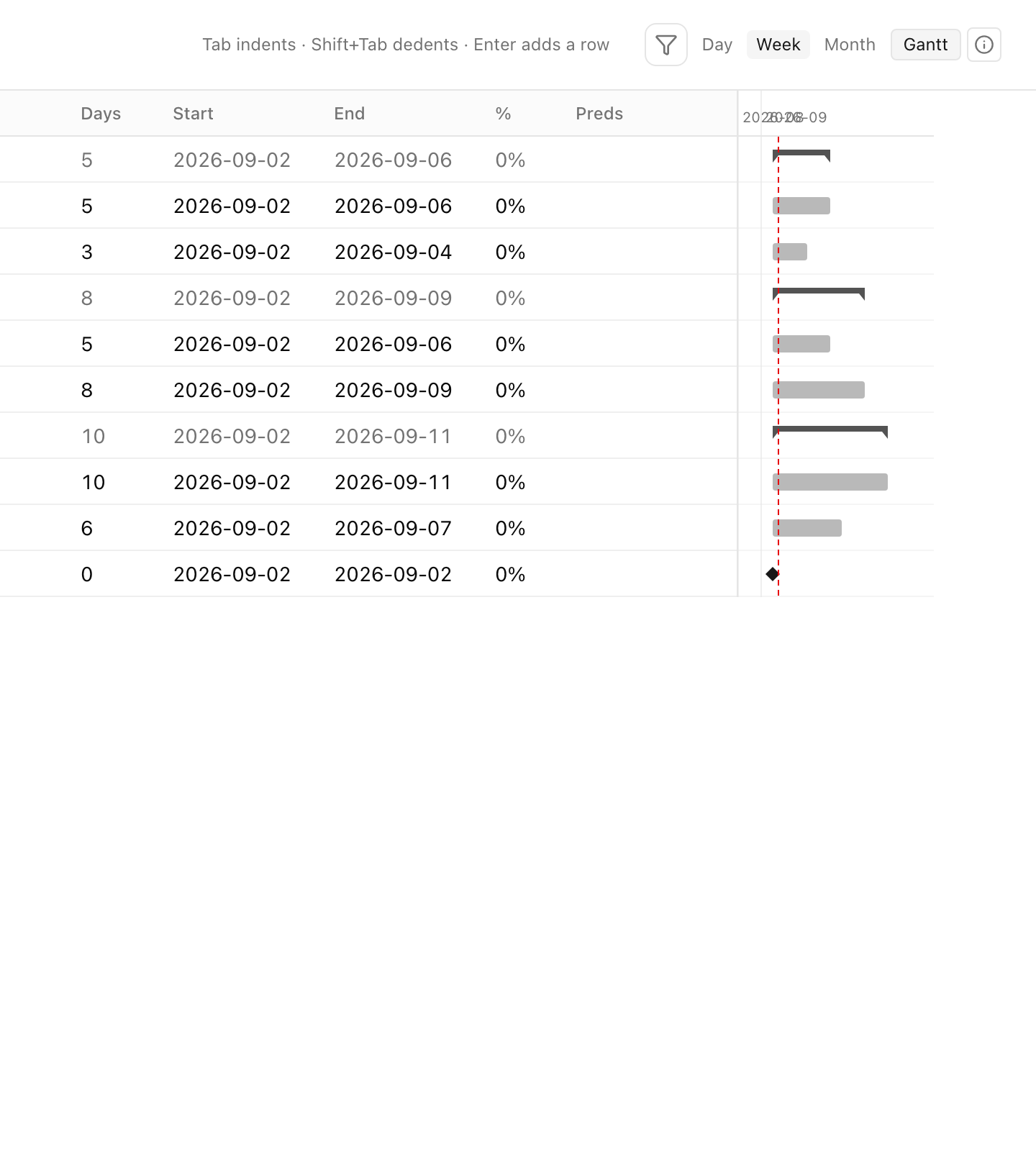
The Gantt button toggles the timeline; zoom between day, week, and month. Leaf rows are bars filled to their percent, parents are thin brackets, milestones are diamonds, and a dashed line marks today. The timeline scrolls with the grid and collapses with it, so rows always line up.
Copy and paste subtrees
Section titled “Copy and paste subtrees”Copy, Cut, and Paste work on whole subtrees as tab-indented text — one row per line, with indentation for depth and columns for name, days, start, end and percent. The text round-trips through a plain editor or a spreadsheet, so you can draft a phase in Excel, or copy a phase you set up once and paste it again below. Pasted rows land as siblings after the active row. Notes don’t travel with the clipboard.
- Build the outline first (names and nesting only), then add dates; roll-ups appear as soon as leaves have dates.
- Keep the Task info panel open while entering dependencies to confirm the suggested start.
- Jump here with p in the command palette.