
Plans and billing
Ensō has one paid plan, Premium, which you try free for 14 days from the moment you sign up.
| Trial | Premium | |
|---|---|---|
| Price | $0 for 14 days, no card required | $8 / month or $80 / year (two months free) |
| Sync across web, desktop and mobile | Yes | Yes |
| Every module, offline-first | Yes | Yes |
| End-to-end encrypted vaults, Email module, priority support | Yes | Yes |
Prices exclude applicable taxes. On iPhone and iPad, Premium is sold as an App Store subscription at the price the App Store shows in your local currency; on Android, as a Google Play subscription at the price Google Play shows.
When the trial ends
Section titled “When the trial ends”Your data is never at risk. What stops is sync: the status pip reads Subscribe to sync, and the app shows a full-screen notice: “Your Premium trial has ended — Subscribe to keep syncing across your devices. Everything you’ve made is safe on this device and on the server.” From that screen you can subscribe, open Plan details, or sign out.
Everything already on each device stays there and stays editable; you can still sign in, export your data and delete your account. Subscribing resumes sync within a minute.
In the last week of the trial a banner reminds you — “Your Premium trial ends in 4 days” — with a Subscribe button, and a badge appears in the rail.
Subscribing
Section titled “Subscribing”On the web or desktop
Section titled “On the web or desktop”- Open the billing page: the Subscribe link in the reminder, Billing in Settings, or the paywall screen.
- Choose Premium yearly — $80/yr or Premium monthly — $8/mo.
- Stripe Checkout opens. In the web app it opens in the same tab; on desktop it opens in your browser — “Come back here afterwards — the app updates on its own.”
- After paying, the billing page shows “Finishing up… confirming your subscription with Stripe” for a few seconds, then your plan.
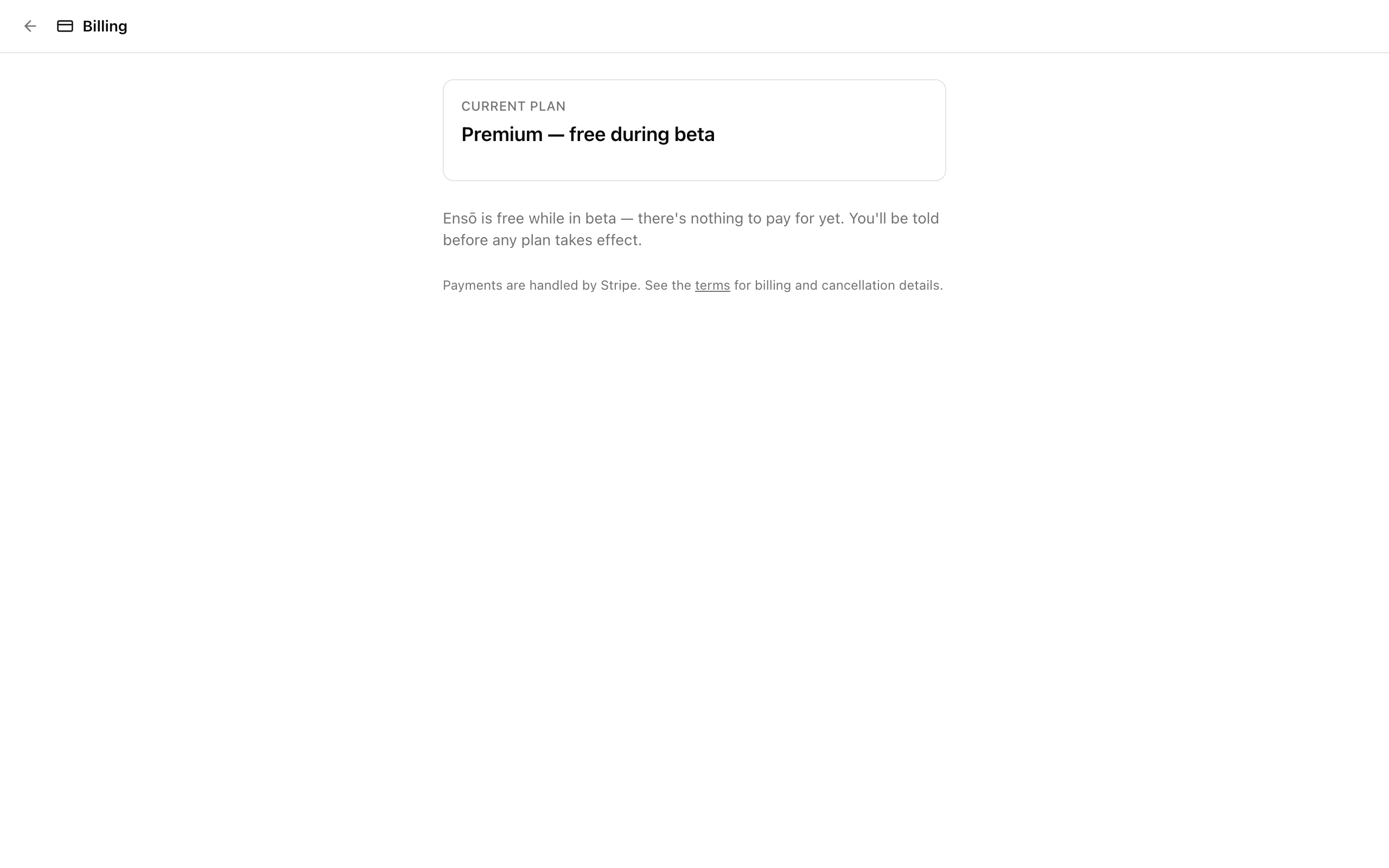
Payments are handled by Stripe; Ensō never sees your card number. Checkout accepts promotion codes.
On iPhone and iPad
Section titled “On iPhone and iPad”The iOS app sells Premium through the App Store as an auto-renewing subscription — the same account, the same Premium, billed to your Apple Account.
- Open the billing page and pick a plan; the App Store purchase sheet confirms it with Face ID / Touch ID.
- Premium unlocks as soon as Apple confirms the purchase — usually immediately.
Already subscribed on this Apple Account (say, after reinstalling or signing in on a new device)? Tap Restore Purchases under the plan buttons.
A subscription made anywhere works everywhere: subscribe on the web and the iPhone app is Premium too, and the other way around.
On Android
Section titled “On Android”The Android app sells Premium through Google Play as an auto-renewing subscription, billed to the Google account signed in to Google Play on that device.
- Open the billing page and pick a plan; the Google Play purchase sheet confirms it.
- Premium unlocks as soon as Google Play confirms the purchase — usually immediately. Some payment methods (cash, bank transfer) take longer; the app unlocks on its own once Google Play reports the payment.
Already subscribed on this Google account (say, after reinstalling or signing in on a new device)? Tap Restore Purchases under the plan buttons.
Managing your subscription
Section titled “Managing your subscription”On the billing page, Current plan shows your plan with its Renews date (or Access until, if you have cancelled).
If you subscribed through Stripe (web or desktop), Manage subscription opens the Stripe billing portal, where you can:
- switch between monthly and yearly;
- update your card;
- download invoices;
- cancel — you keep Premium until the end of the period you have paid for.
If a payment fails, the page shows “Failed — update your card in the portal to keep Premium.” You keep access for the period already paid while Stripe retries.
If you subscribed before and want to come back, the paywall offers Manage your previous subscription, and the billing page links to the portal.
If you subscribed through the App Store, Manage subscription opens Apple’s subscription settings (on an iPhone or iPad, the system sheet; elsewhere, apps.apple.com), where you change plan, update payment, or cancel. Apple’s rules for auto-renewing subscriptions apply: it renews until you cancel there, and cancelling keeps Premium until the end of the paid period. If an App Store payment fails, update the payment method in your Apple Account settings.
If you subscribed through Google Play, Manage subscription opens Google Play’s subscription settings (on the Android app, the Play subscriptions screen; elsewhere, play.google.com), where you change plan, update payment, or cancel. Google Play’s rules apply: it renews until you cancel there, and cancelling keeps Premium until the end of the paid period. If a Google Play payment fails, update the payment method in Google Play → Payments & subscriptions.
Deleting your account cancels an active Stripe subscription automatically. An App Store or Google Play subscription can only be cancelled by you, in that store’s subscription settings — the app reminds you of this before deleting.
See the terms for billing and cancellation details.