
Your data
Everything here lives in Settings (the gear at the bottom of the left rail).
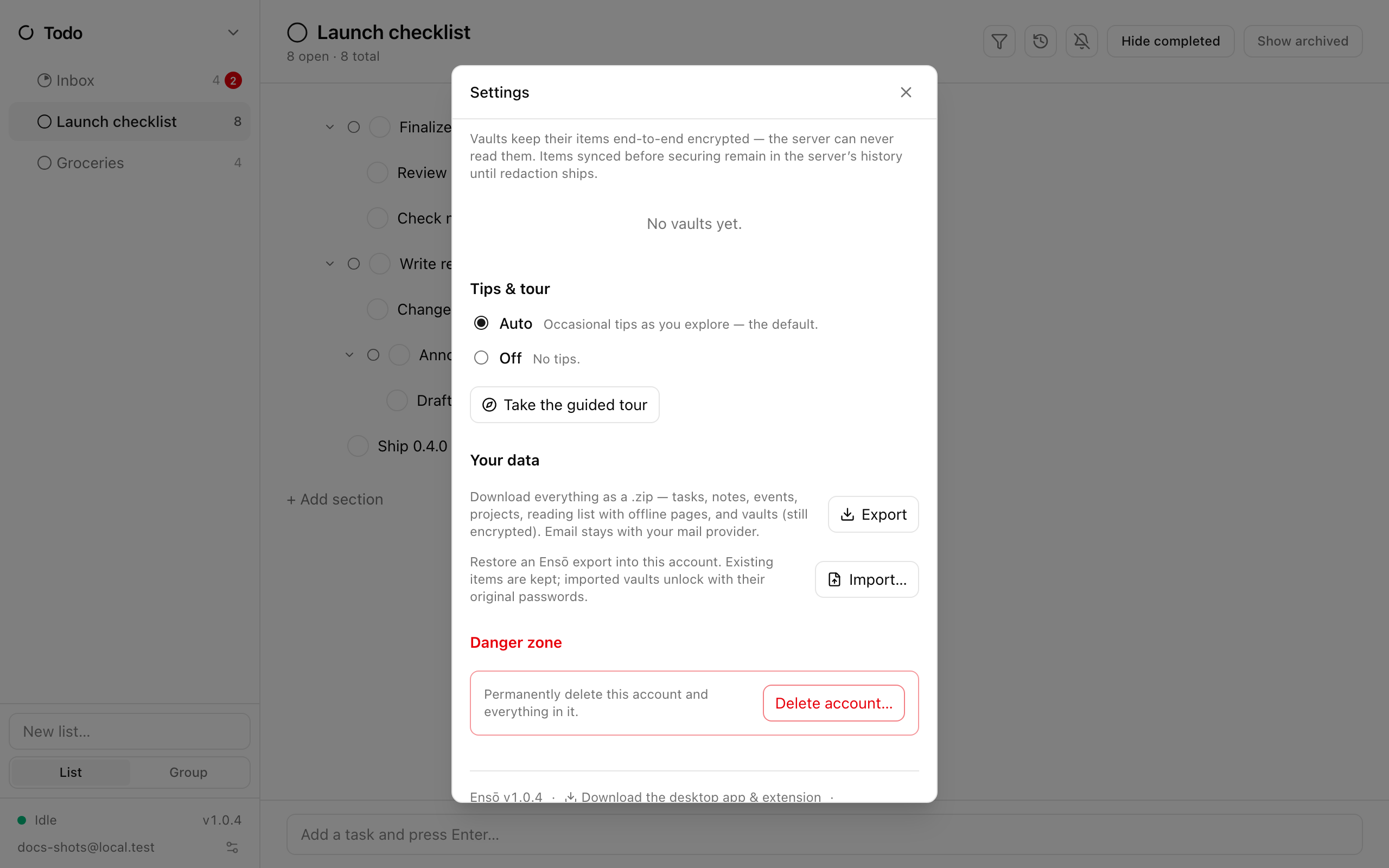
Export
Section titled “Export”Settings → Your data → Export downloads one .zip containing:
- your tasks and lists, notes, calendar events, projects and reading lists;
- the offline copies of your saved reading pages;
- your vaults, still encrypted — the export contains exactly what the server holds, and vault contents remain unreadable without the vault’s password.
Email is not included. Mail belongs to your mail provider; reconnect the account on a new device instead.
On desktop you are asked where to save the file; in the web app the browser downloads it. The export is a full snapshot of your account — keep one before any big change.
Import
Section titled “Import”Settings → Your data → Import… restores an Ensō export into the current account. Pick the .zip (on desktop a file dialog opens; in the web app, choose the file).
- Existing items are kept. Imported items are added alongside them. Importing the same file twice does not create duplicates, and an imported item never overwrites a newer local edit.
- Inbox tasks merge. Tasks in the export’s Inbox land in this account’s Inbox rather than creating a second one.
- Vaults keep their original passwords (and recovery codes).
- Email is ignored, since it was never exported.
- Daily notes from the export stay reachable by title.
When it finishes you see a summary such as “Imported 1,240 items · 12 offline pages”. Your other devices receive everything through normal sync.
Storage
Section titled “Storage”Settings → Storage shows two things.
Server storage — a meter showing how much of your limit is used (for example “24%”): what your account occupies on the server, counting your synced data plus saved-page and mail files.
Breakdown by app — a donut of this device’s local copy split into Calendar, Todo, Notes, Reading List, Projects, Email and System (database overhead). The two figures differ on purpose: the server counts files the device may not have downloaded, and vice versa.
The storage limit
Section titled “The storage limit”Each account has 500 MiB of server storage.
- From 80 %, an orange banner appears above the app — “Your server storage is almost full” — with the advice to delete saved pages, attachments or mail to stay under the limit. The status pip’s tooltip shows the same figure.
- At 100 %, the banner turns red (“Your server storage is full”), the status pip reads Storage full, and uploads pause: “Sync is paused until you delete some saved pages, attachments or mail. Your changes are kept on this device meanwhile.”
While full, you still receive changes from other devices, and deletions still go through — so you can free space from any device. Your queued edits upload on the next sync after you are back under the limit.
Deleting your account
Section titled “Deleting your account”Settings → Danger zone → Delete account… permanently erases your account and everything in it on the server: every task, note, event, project and reading-list page, the offline page copies, and your encrypted vaults.
The confirmation dialog asks you to type your email address and re-enter your password, then Delete forever.
If you have a paid subscription, it is cancelled as part of the deletion.