
A reading workflow
You’ll install the Ensō Chrome extension, save an article from your browser, find it in Reading with its offline copy, sort your saves into lists, and mark them read. About 15 minutes.
What you’ll need
Section titled “What you’ll need”- Google Chrome (version 116 or newer)
- An Ensō account — sign up at https://app.ensoapp.io if you haven’t
1. Install the extension
Section titled “1. Install the extension”- Open the Ensō Reading listing on the Chrome Web Store. (In the app, Reading → Browser extension opens the same link.)
- Click Add to Chrome and accept the permissions prompt.
- Pin the Ensō reading list button to your toolbar.
Chrome keeps the extension up to date from here on.
2. Sign in to the extension
Section titled “2. Sign in to the extension”Click the Ensō toolbar button. A side panel opens with Email and Password fields — enter your Ensō account and click Sign in. You stay signed in until you choose Sign out.
3. Save a page
Section titled “3. Save a page”- Open an article you’d like to read later.
- Click the Ensō button. The panel shows the page title and a Save to list — Inbox to begin with.
- Click Save page. You’ll see Capturing…, Uploading…, then Saved.
The extension captures a full offline copy along with the link. If a page can’t be captured (heavy or cross-origin pages sometimes refuse), click Save URL only to keep just the link.
4. Find it in Reading
Section titled “4. Find it in Reading”Open Ensō and go to Reading (Ctrl+Space, r, Enter). Your Inbox list shows the new page with its site icon. The header counts N unread · N total.
Each row has:
- A round toggle on the left — Mark read
- The title, which opens the live page in your browser
- (Offline) — the saved copy, which opens in a new tab and works without a connection
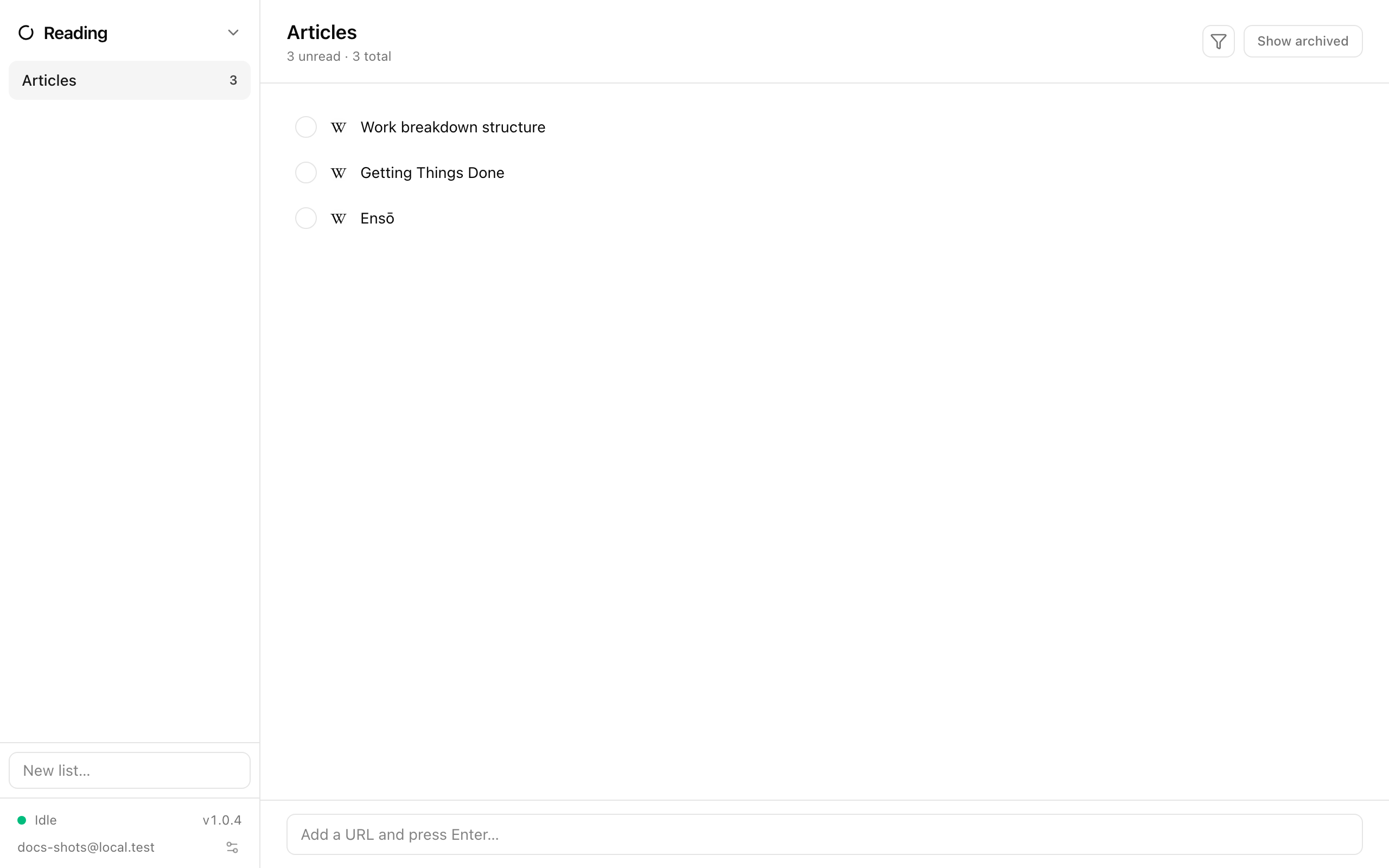
You can also add a link by hand: type into Add a URL and press Enter… at the bottom. Hand-added links keep only the URL, no offline copy.
5. Organize into lists
Section titled “5. Organize into lists”- At the bottom of the sidebar, type into New list… —
Long reads— and press Enter. - Drag a page from the main pane onto Long reads in the sidebar, or right-click the page and pick the list under Move to.
- Right-click a list for Rename, Tags…, or Delete list.
Back in the extension, Save to now offers your new list and remembers the last one you used.
6. Read offline, then mark read
Section titled “6. Read offline, then mark read”- Click (Offline) to read the saved copy — on a plane, on the train, wherever.
- When you’re done, click the round toggle (Mark read). The row is struck through, lingers a moment, then moves into Completed (N).
Marking a page read keeps its offline copy for 7 days (un-tick it and the copy is right there), then clears it to save space; after that, save the page again from the extension if you want it back. You can also mark pages read from the extension panel (Mark as Read), and see everything you’ve saved there with Show archived / Hide archived.
7. Tidy up
Section titled “7. Tidy up”Hover a row for Archive page (tucks it under Archived (N) — toggle Show archived in the header to see it) or Delete page. Finished reads also show up in your Agenda under Reading → Finished on the day you completed them.
Where next
Section titled “Where next”- Reading — the module in full
- Chrome extension — options, troubleshooting, the extension’s own list view
- Sync and offline